Actions in the Repository
Actions in Action Bars
The available actions that can be applied to an object are accessible via symbols on the action bar. When you move the mouse pointer over a symbol, a tooltip displays information about the action to be executed. If an action is not available, the symbol is displayed in gray and cannot be selected.

The following functions are possible depending on the selected object:
| Edit basic properties of the object. | |
| Opens the editing tool for image files (JPEG, PNG, GIF, BMP) with appropriate PlanTeam-SPACE configuration.Clarkii. After saving the file via File - Save, you can select whether you want to save your changes as a new file or overwrite the existing file. | |
| View Object Registration | |
| Documentation only: Automatic Importof documents. | |
 |
Create New Subject |
 |
Create New Folder |
| Starts the Search below the selected object. | |
| Generate a structure using a Documentation Template. | |
| Documentation Structure as an Excel report. | |
| Link Member | |
| Adds the object to the Clipboard in. | |
| Insert objects from the clipboard. | |
| A CAD document or a drawing upload (e.g., dwg, dgn, nid, plt, pdf) | |
| Upload a document to the PlanTeam SPACE upload | |
 |
Upload an attachment to this document |
 |
Create new plan folder |
 |
Create new revision folder |
 |
Create new document folder |
| Create a new index in a plan folder | |
| New version of an index | |
 |
Converts a document into a CAD document |
 |
Converts a CAD document into a document |
| Switches to thumbnail view for documents thumbnails. | |
| Switches to table view for documents. | |
| View document preview if available. Documents are always opened with the defined standard application. | |
 |
Opens the metadata of an image or a PDF file. |
| Download document directly | |
| Download compressed document as ZIP archive | |
| Extract unpacked ZIP file | |
| Preview a ZIP file | |
| Add document to Download Order | |
 |
Create New Appointment |
 |
Create New Task |
 |
Creation of a Release |
| References and Links Display | |
| Document via a Distribution List | |
| View Document's Outgoing Journal | |
| Lists the last planning status in a selected folder or discipline. CAD documents are displayed in their respective last index within individual planning folders. | |
| Adds the object to the Favorites. | |
| Deletes the object. To be deleted, disciplines, folders, and planning/document folders must not contain any documents. Depending on the configuration, direct deletion may not be possible. In this case, documents and CAD documents must first be moved to the Recycle Bin and then deleted from there. | |
| Move document to the Recycle Bin | |
| Send object as E-Mail | |
| Creation of a Subscription | |
| Creates a PDF document with the properties of the object. This can subsequently be printed. | |
| Capture Notes and Ratings |
Additionally, the following actions are possible on the right-hand side of the property pages:
| Expand document in tree | |
| Release on | |
| Access rights change | |
| Rename file - in tables, a selected file can also be renamed via the key F2 rename. | |
| Show incoming journal | |
| Keywords set | |
| Status change | |
| Displays Geo-data on a map | |
| Show all predecessors | |
| Show details for direct predecessor |
| Note: | You can adapt the selection of actions displayed in the action bar to your preferences. |
Actions in tables
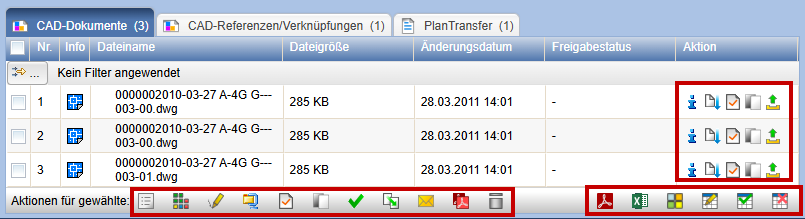
Further actions are possible in the table footers:
| Switches between displaying small and large symbols in tables for documents. If a preview exists for a document, it will be displayed instead of the large symbol. | |
| Deletes the saved layout. | |
| Saves the current layout (column widths) of the table. The layout is now applied to all further tables of the same type. | |
| Opens the dialog for individual column settings. | |
| Exports the last planning status as a PDF report (only available for "last planning status") | |
| Exports the last planning status as an Excel report (only available for "last planning status") | |
| Changes additional attributes | |
| Downloads documents in a compressed ZIP archive from PlanTeam-SPACE. | |
| Add documents for Download Order | |
| Adds the objects to the Clipboard. | |
|
Create a Release |
|
Converts the documents into CAD documents |
|
Converts the CAD documents into documents |
| Move documents to the Recycle Bin | |
| Opens the information dialog for the document. | |
| View preview of the document, if available. Documents are always opened with the defined standard application. | |
| Download document directly | |
| View the document's output journal | |
| Send objects as Email | |
| Display preview of the content of a zip file (only available for zip files) |