Links to Objects
Topics
Links to Objects
Documents, CAD documents, and other objects can be linked to other objects to represent dependencies on one hand and minimize maintenance effort in case of multiple occurrences on the other.
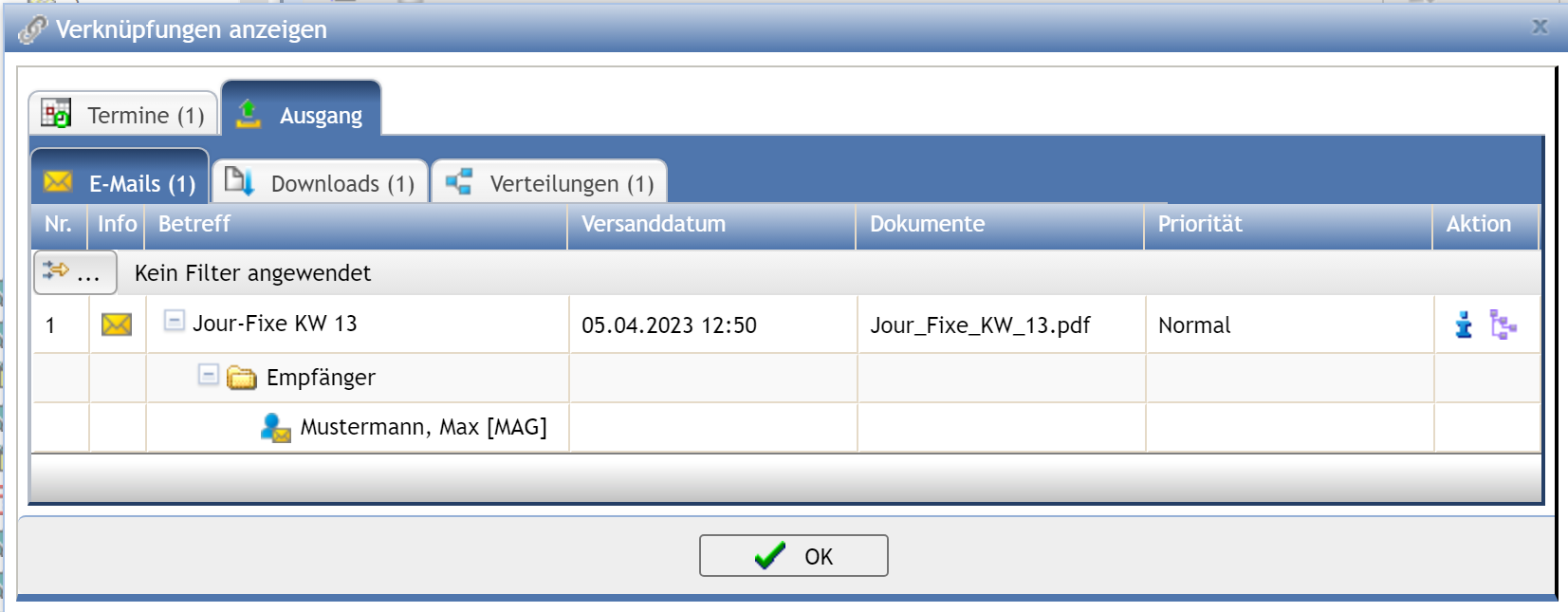
All links of an object to other objects from other components, e.g., inventory groups, floors, or costs, can be displayed. To do this, click the button in
the menu bar. In an overview within a dialog,
all links are now displayed. The linked objects can be expanded via the action
in the tree and using the action
an info dialog with the respective
object information can be opened.
Create Link to Disciplines
To link objects, such as structures, floor levels, technical systems, and outdoor surfaces,
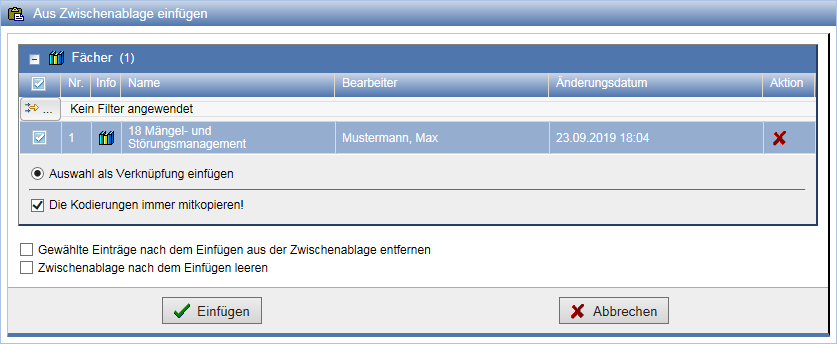
to a specific discipline in the documentation, a link can be created here. With the action
copy the discipline from the documentation to the clipboard. Now go to the target object
and select the action
to
paste from the clipboard.
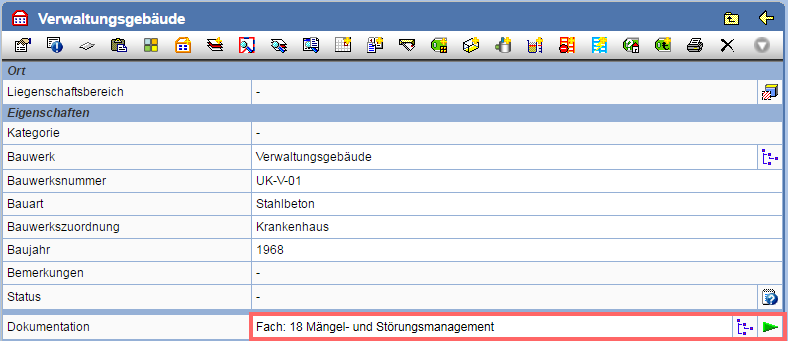
Subsequently, you can check in the properties which discipline the object is linked to.
| Note: | Only one discipline, folder, or document folder can be linked to an object. |
Create Link to Members
Disciplines, documents, and document folders can be linked to members
via the action on the Properties page. For example, current contact data of contacts
such as can be provided.

Now mark the members to be linked using the corresponding checkboxes. If you select a group in this way, all members contained therein are selected simultaneously.
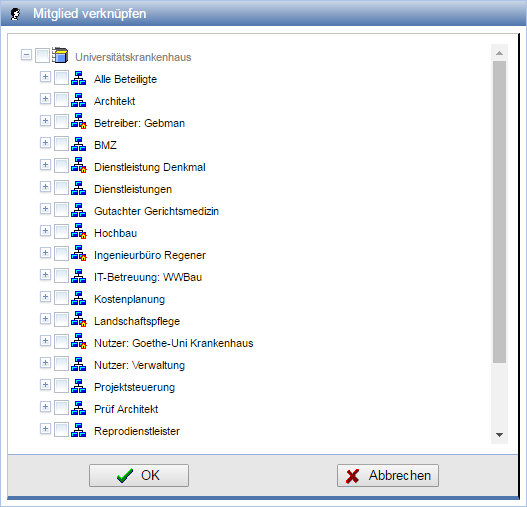
After you have selected all desired members, end the dialog with OK.
Members linked to an object appear on its Properties page in their own table.
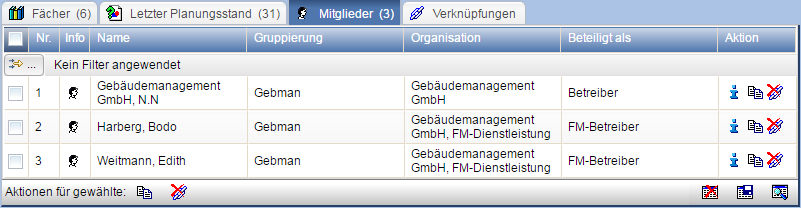
Links can subsequently be undone via the action again. To delete multiple
links at once, mark the desired links
and press the action below the table
.
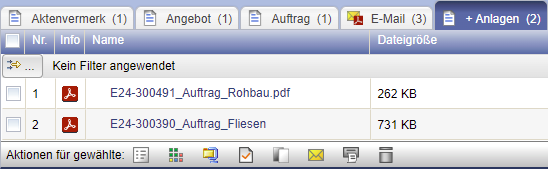
Linking Document Attachments
If documents are linked as attachments and the main document is located in the same document folder, the documents will be displayed in their respective tabs according to their document type. If the attachments do not have a document type, they will be displayed in the tab + Attachments regardless of the document type.