Download Documents
Topics
Download Action
(CAD) documents can be added individually or via multi-selection to the download order using the action
in the download order.
As soon as at least one (CAD) document is in the download order, the Download Action appears in the navigation bar including the number
of contained (CAD) documents.

By clicking on the Download Action, a dialog opens in which all objects contained in the download order are listed.
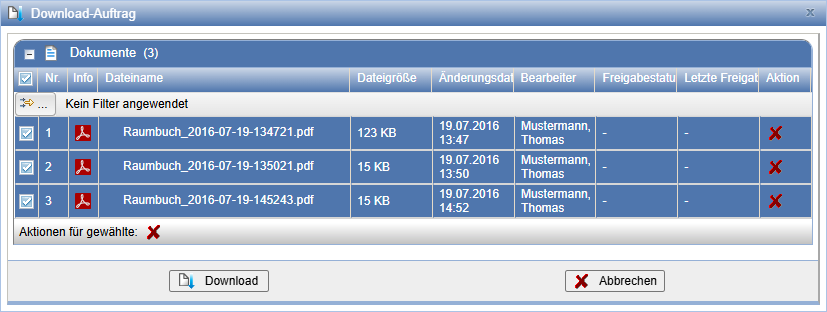
Here, (CAD) documents can be removed individually or via multi-selection with the action
again. Via the icons of the respective (CAD) documents, you access their property pages.
In case zip files are included, their content can be viewed via
.
With the action
, all selected (CAD) documents are zipped and downloaded.
The downloaded documents are automatically removed from the download order.
If the download order is empty, the Download Action disappears again.
Download Documents Individually
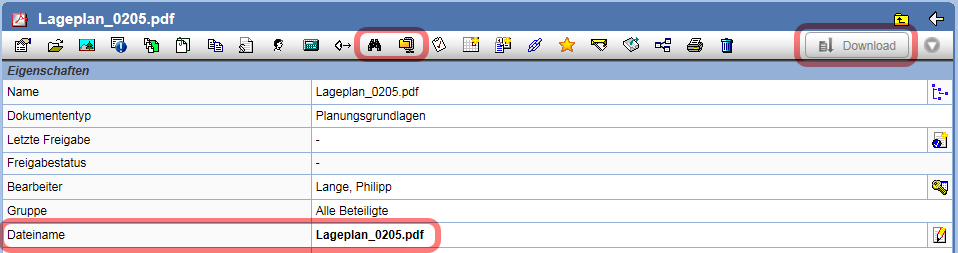
Via the File Name of a document, you can go to its property page and download the document in a table.
Simply click on this. Via the actions (zipped) and
documents can be downloaded individually.
Additionally, a Download Action is available on the right side of the property page.
Documents are displayed in the lists of the folders, indexes, and versions containing them. Via actions in the right column of the list, the documents can be downloaded.
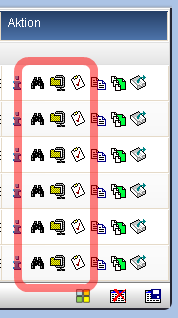
The following actions allow downloading documents:
| Documents are downloaded directly. If the MIME-Type is linked to an application in the browser, the file can be opened in the assigned application. | |
| Documents are zipped and then downloaded. | |
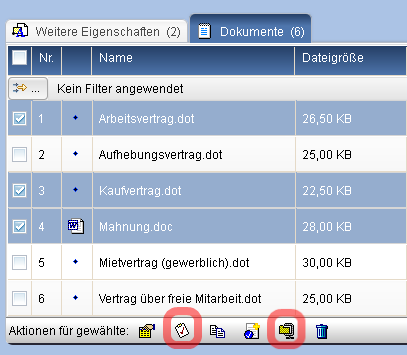
| With this action, documents are added to the list of the Download Order enabled. You can collect multiple documents in the Download order and then download them simultaneously as a Zip file. When called from the footer of the table, this action is executed for all marked files. |
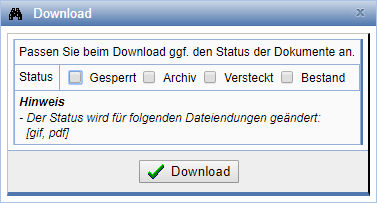
With appropriate configuration, when downloading documents, the Status can be set at the same time. This can also be restricted to documents of a certain type. Mark the desired Status and proceed by pressing Download.
Download multiple documents simultaneously on the server
To accelerate the download of documents, several documents can be compiled into a single Download order. The collected documents are compressed on the server and can be downloaded as a single Zip file.
Documents are added to the Download order via the action . This can be done for individual documents, or in
lists (e.g., search results or folder contents) for multiple documents.
Once the compilation is complete, open the Download order via
the action
in the Action bar
Alternatively, you can execute the Download order via
the Download action
in the navigation bar.
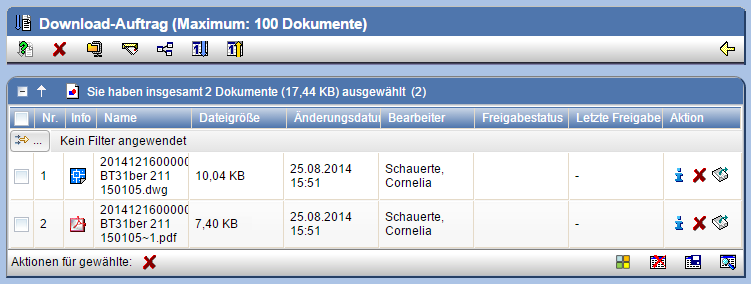
The following actions are available in the Download order:
| Opens the Download Manager. | |
| Removes documents from the Download order. | |
| Starts the Download order. The files are zipped on the server and can be downloaded by you to your local system. | |
| Send the compiled documents as E-mail. The documents can be retrieved by the recipient from PlanTeam-SPACE via a link in the e-mail. All users who use the same e-mail address and belong to the same organization as the original recipient can download the documents via the forward function in the e-mail. It is also possible to attach the documents to the e-mail. In this case, the files are compressed into a Zip file. If the set limit (e.g., 5 MB) is exceeded, the files will be automatically distributed across multiple emails. | |
| Distribute documents to multiple recipients via Distribution list, analogous to distribution via Collection/Dispatcher. | |
| Show today's downloads. | |
| Show today's uploads. |
When a download is started, a status line is displayed that informs about the progress of creating the ZIP archive on the server.
| Note: | As long as a download order is being executed, no new documents can be marked for another download order. |
Download via Multiple Selection
Via multiple selection in lists and search results, you can either add the selected documents to the download order or download them directly as a zip archive.
Download Attachments
If you want to download the attachments of a document, open the context menu of the corresponding document and select under Insert attachments into the list of the download order and the desired attachment.
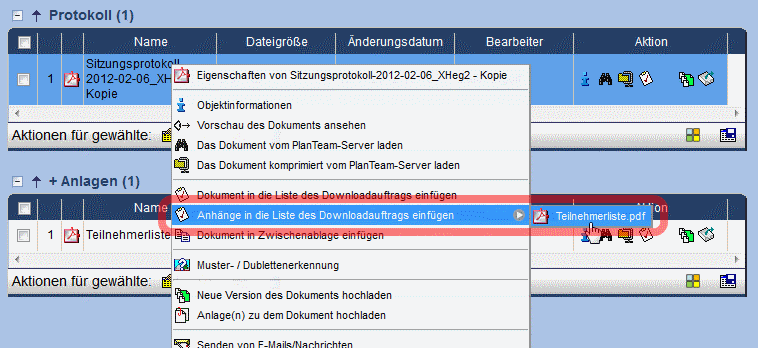
The desired attachment is subsequently inserted into the download order.
Download Manager
The Download Manager shows the current status of your downloads. With appropriate setting the Download Manager will be automatically opened every time documents are downloaded.
The Download Manager only shows documents that were individually downloaded.
Alternatively, it can also be opened manually via the action manually opened
. You will find this action in the lower right area of the
browser window. This action button can be placed at any other location
via the drag-and-drop mechanism.
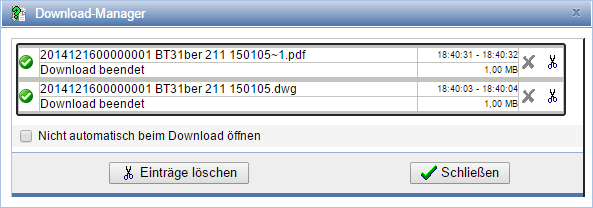
If you want to cancel an ongoing download,
press in the corresponding line .
To remove individual downloads from the download manager,
press . With Delete Entries
all entries can be removed at once.
To close the download manager, press Close.
Download History

Via the symbol you can retrieve the download history for a specific document.
A list of all entries from the source journal that exist for this document is displayed. Thus, you can see at a glance who and when the document was downloaded.

Also refer to the instructions on the Incoming and Outgoing Journal via Search.