Search
Topics
Search outside the project
Via the symbol in the menu bar
or, with appropriate configuration, via the header, the search is started.
Outside of projects, you can search for CAD documents and documents. The input of search parameters here is partially restricted compared to the search within projects.
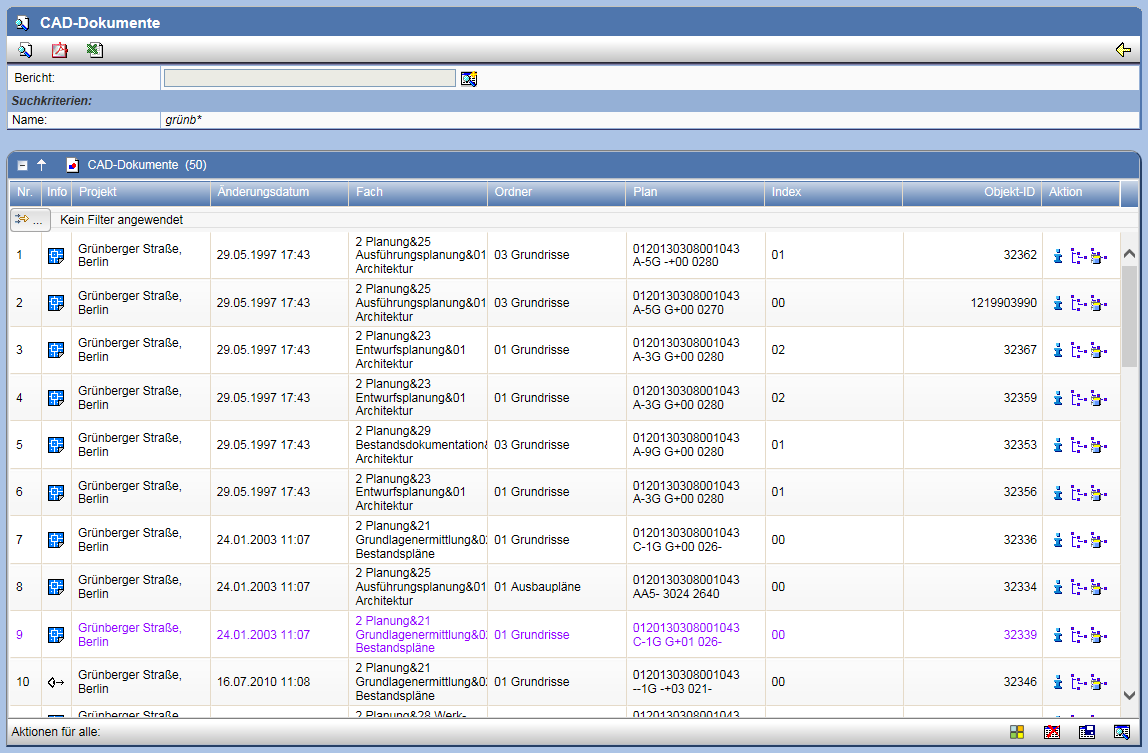
From the result list of the search, the storage locations of the documents can be browsed, while simultaneously opening the project.
Further information on search can be found in the chapter on general search.
Search within the project
Via the symbol in the menu bar
or, with appropriate configuration, via the header,
you can search within the project documentation for tasks,
schedules, documents, indices, etc. Various search and sorting criteria
can be specified.

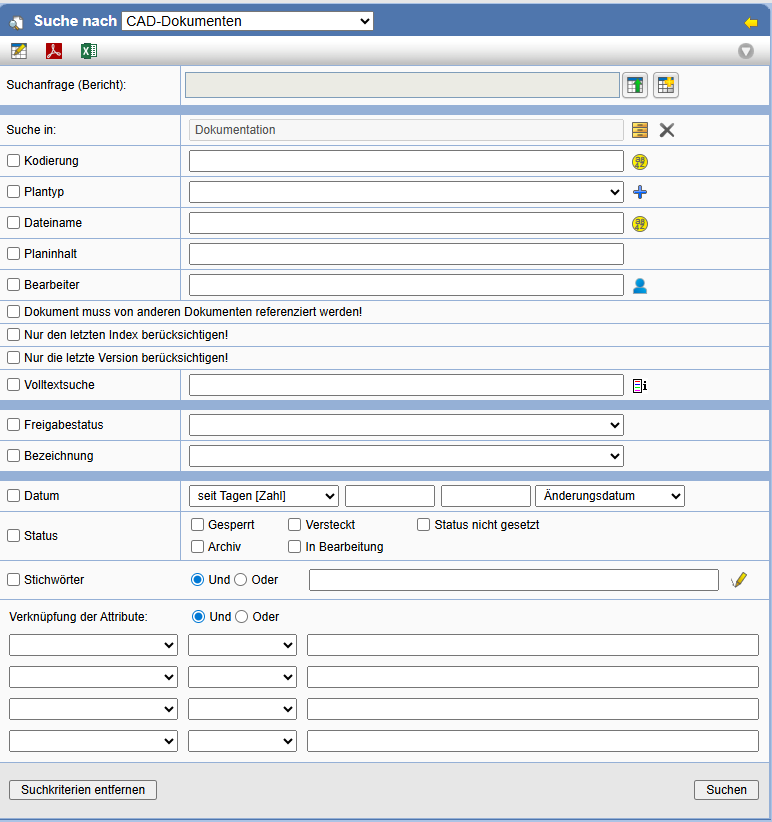
If you are searching for coded documents in the documentation,
via
the Coding Help
can be called up.
It is possible to search for documents by specific keywords.
By selecting you can compile the keywords you want to search for.
The field 'Linking Attributes' offers you the possibility to filter the searched objects with regard to the values of the freely defined attributes. A maximum of 4 attribute linkages can be specified. All freely defined attributes for an object are offered in the drop-down menu on the left side. The values of the attributes are to be defined on the right side.
The selected search criteria can be removed by "Remove Search Criteria". The search is started with "Search".
The result display is performed as a list that can be sorted according to various criteria. It can be refined at will by a new search. The previous search criteria are entered as default settings in the search mask.
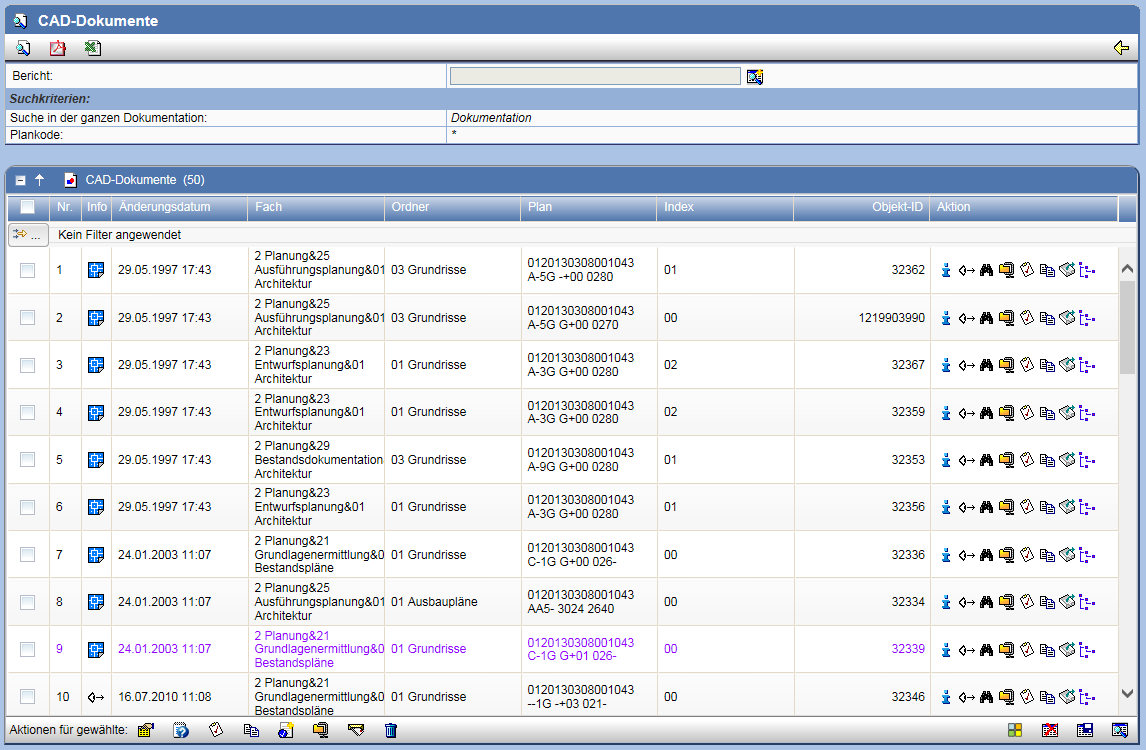
Unless displaying hidden documents is explicitly enabled in the documentation, documents with the status hidden are excluded from search. Regardless of this, hidden documents are displayed to members of the role document manager in any case.
You can also have the list printed as a PDF or Excel document. Details are available in the general description of Search.
In the line Actions for selected you can insert documents into the clipboard or a download order inserted into trash can moved, downloaded and as email sent. Your attributes can be edited, your status changed, and for selection you can create approvals. Here you can choose whether all found elements or only the elements displayed on the current page should be inserted.

Furthermore, it is possible to save search requests in reports. For this purpose, please use the menu item Search Reports.
Search in subjects and folders
It is possible to limit the search to a specific subject or folder. To do so, open the corresponding properties page and select the action .

You can now use the search function as usual. You will be informed both in the search mask and in the search results that the search is limited to the subject/folder.
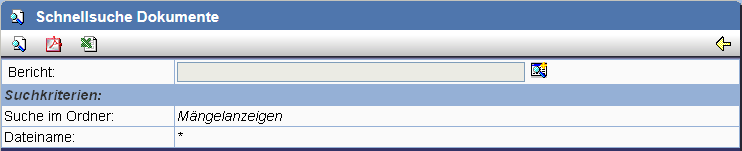
Full-text search
If full-text search has been activated, an additional search field Full-text search is available here. The content of text files (PDF, Word, etc.) is searched here.

For a document to be found via full-text search, it must have been recorded during indexing beforehand. During indexing, the file content is read; therefore, the document must not be protected in order to be recorded.
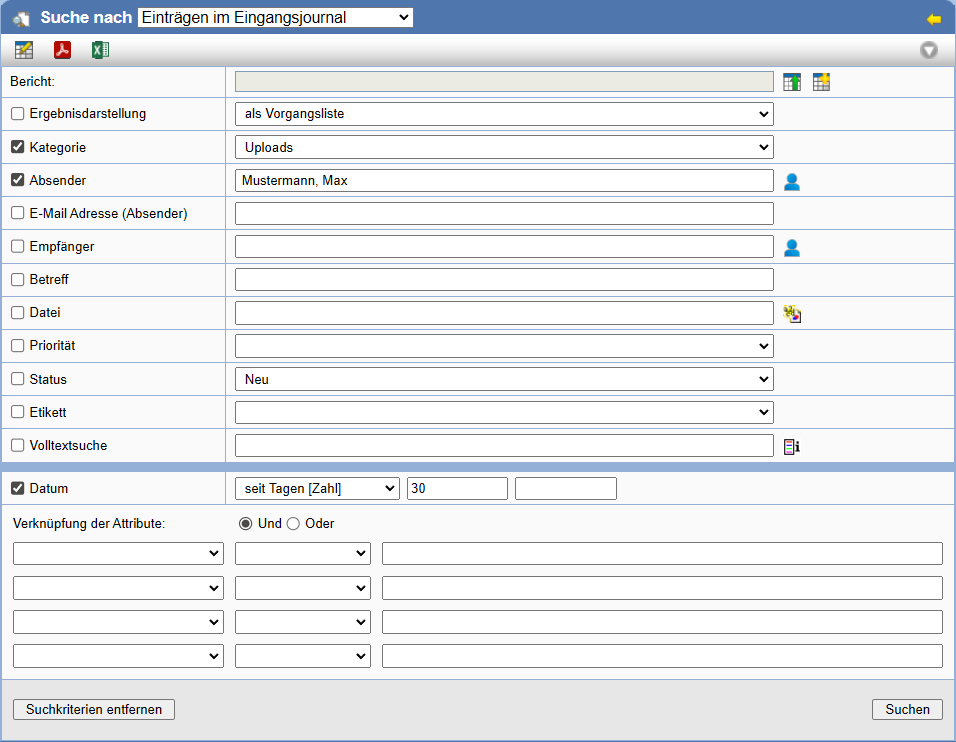
Search for uploads
To display uploads in the project in a tabular format, the Search for Incoming Journals can be used. For this, select the category Uploads and optionally specify a project member and a search time period. The results can be displayed as a process list or as a list of documents.
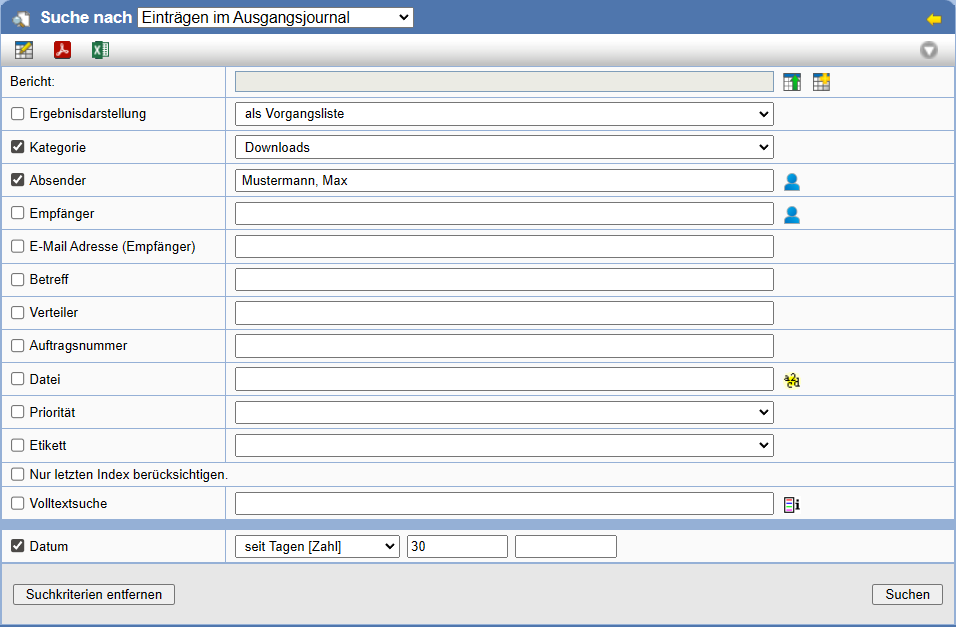
Search for downloads
To display downloads in the project in a tabular format, the Search for Outgoing Journals can be used. For this, select the category Downloads and optionally specify a project member and a search time period. The results can be displayed as a process list or as a list of documents.
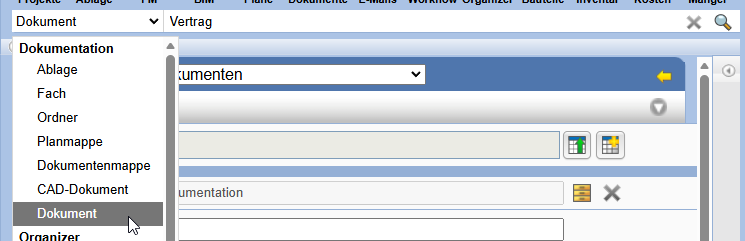
Quick search
With the help of the Quick Search function already indexed objects can be easily and comfortably searched. To use the Quick Search, select the desired object in the drop-down list and enter the search parameters next to it.