Status
Set Status
Special properties can be set for an object based on its status. In the documentation, these statuses are LOCKED, ARCHIVED, HIDDEN, IN PROGRESS, and EXISTING.
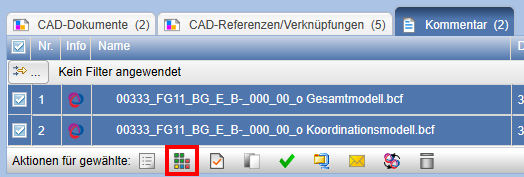
The status can be set or removed via the action symbol on the properties page of an object.
Setting a status affects all subordinate elements. For example, if a folder is locked in the documentation, all contained subfolders, maps, and documents are also locked.
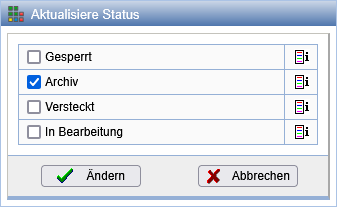
Detailed meanings:
| Locked | The object is locked for both read and write access and can no longer be opened. Locked objects are displayed in red by default. |
| Archived | The object is locked for write access and can therefore no longer be modified. Archived objects are displayed in gray by default. |
| Hidden | The object is no longer displayed. If hidden objects are shown, they are displayed in pink by default. |
| In Progress / Existing | The object is locked for write access and can therefore no longer be modified. Objects with the status EXISTING are displayed in gray by default. For a (CAD) document, this area additionally displays which person is editing it. |
The status can also be set during certain actions, such as uploading a new version of a document, creating a new index, or, depending on server configuration, downloading individual or multiple documents.
The status can be adjusted for multiple objects simultaneously in tables.
Color Coding
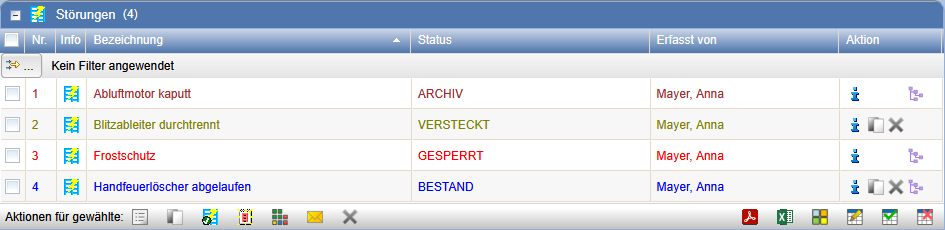
Objects are color-coded in lists and the tree view depending on their status.
In the Personal Settings the colors for individual status values can be adjusted.
Show Hidden Documents
Hidden documents, folders, and files can be displayed via the Search display option. However, this does not apply to objects on which you do not have Read Access.
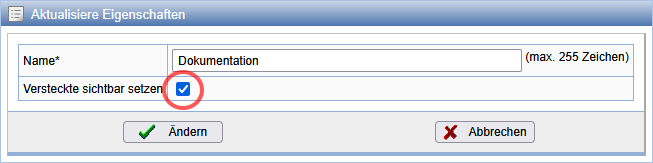
Members with the Role Document Manager can, for the purpose of managing the repository, make hidden parts of these visible. To do so, select the action Change Properties from the context menu or the action bar at the topmost node of the documentation.
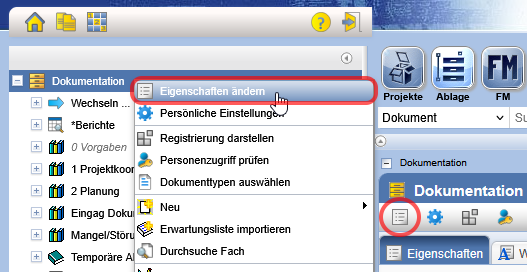
In the subsequent dialog, activate the option Set Hidden as Visible.