Distributions
| Note: | The Distributions function is, unlike Distributors Generally, disabled by default and may need to be configured first. |
General
A distribution is the sending of documents to specific recipients. The documents can reach the recipients in various ways: as an email attachment, as a link in an email for direct download from PlanTeam-SPACE, or in paper form via a reprographics service provider. In the latter case, only the reprographics service provider receives an email.
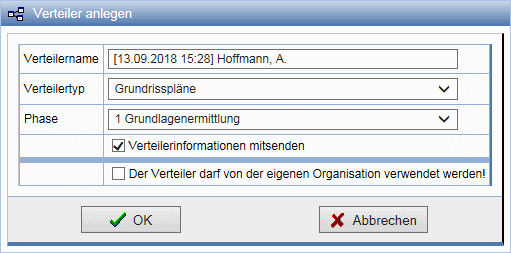
To perform a distribution, a distributor must first be created. Depending on the type of reception, there is a distinction between email distributors and repro distributors. Additionally, group distributors are available, each linked to a member group. Furthermore, there is a distinction between personal distributors, which are only available to the creator, and global distributors, which are available to all members.
Assemble Order
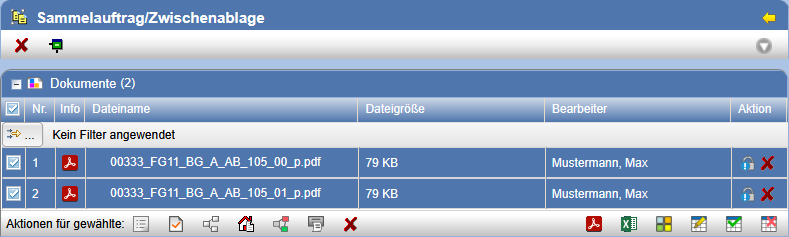
Documents or other objects are copied into the batch order/cutlist via the action icon
in addition, when uploading or during automatic import, the documents can optionally be added to the cutlist.
Via the action icon in the menu bar
the Cutlist
is opened and the contained objects are displayed. First check the assembly and distribute the documents subsequently using distributors or send them as Email.
Distribute Documents
Via the action icon the documents located in the cutlist are sent to the recipients of defined distributors. First, the distribution form is displayed.
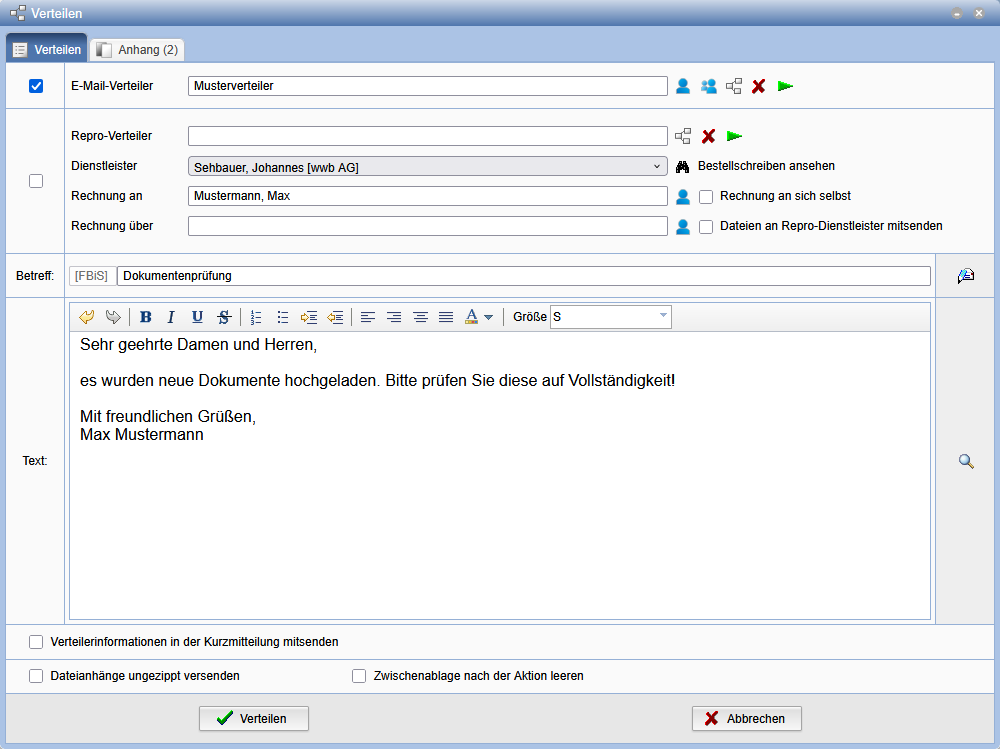
The following actions are available to you:
| Creates a temporary distribution list that you can define yourself. | |
| Allows selection of the invoice recipient for a repro distribution | |
| Selects a Group Distribution List. | |
| Selects a E-mail or Repro Distribution List. | |
| Deletes the current distribution list selection. | |
| Displays the distribution list. | |
| Displays the order form. | |
| With this action, drafts or templates for distribution can be loaded (Only the message text is taken over!). These can be created via the E-mail dialog. |
Additionally, the following options can be selected:
| Send distribution information in the short message | If this option is set, the selected recipients are listed in a table in the message text. |
| Send attachments without unzipping | Documents are compressed by default to minimize data transfer. If this option is set, the attachment is not compressed. |
| Clear clipboard after action | The clipboard is cleared after distribution. |
| Send additionally as message | Recipients receive an additional internal message if they have an ID. |
On the Attachments tab, further documents can be added, which is also possible via Drag & Drop .
By clicking the button Distribute, the selected documents or information about the documents are sent according to the distribution list. For verification, the distribution information is displayed beforehand, in which you can individually deselect the recipients.
or deselect them, or cancel the distribution.
The dialog displayed corresponds to the one for Modifying a
Distribution List. The settings here are not saved permanently,
but apply only to the currently performed distribution.
After the distribution process, a log is created that summarizes all relevant information. This log is assigned to the distribution's output journal and can be viewed at a later time in the Message Center. Immediately after distribution, the log can be accessed via the status bar and reviewed. It is also possible to have the log sent to your own email address.
Modify Distribution List
Using the green arrow , the properties of the
selected distribution list are displayed. This list is also shown during
the actual distribution to allow you to verify the recipients one last time before distributing.
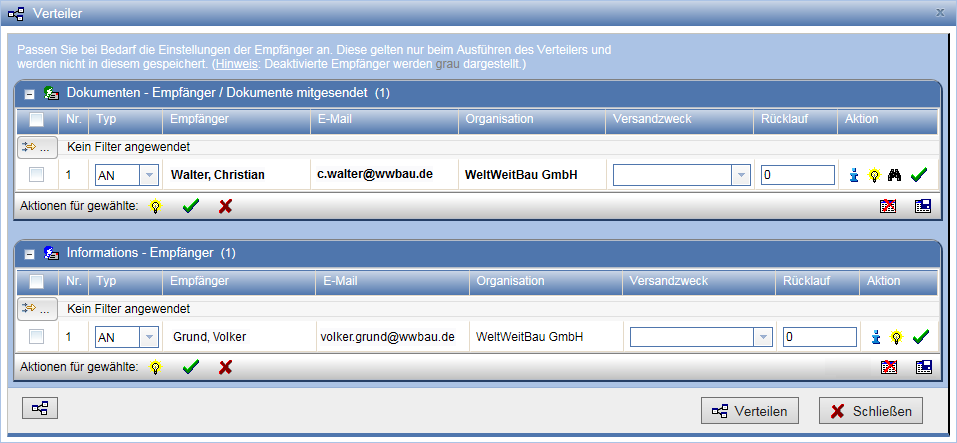
During distribution, only active recipients are considered. Inactive recipients are shown in gray
and marked with the icon in the action column. Pressing this symbol activates the deactivated recipient.
The icon
indicates an activated recipient. When this button is pressed, the recipient is deactivated.
To perform actions on multiple recipients simultaneously,
select them by checking the box before the corresponding row and choose the desired
action in the table footer.
Regardless of the current status, the button
activates all recipients and
deactivates them accordingly.
Via the button , if configured, the letter to be generated can be viewed. To edit the
recipient settings, press the button
.
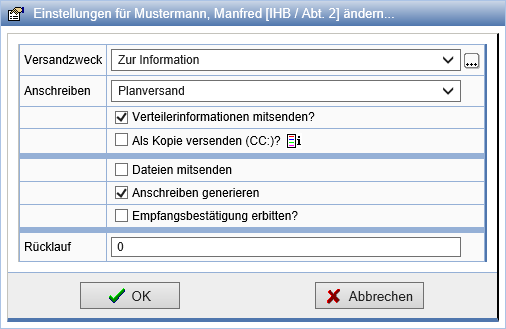
Here, by setting options, you can specify, for example, whether the list of recipients should be included in the generated message text (option: Send Distribution List), whether files should be attached, and whether the selected letter should be generated. Sending letters is dependent on the option to attach files. Confirm the settings with OK or discard them by pressing Cancel.
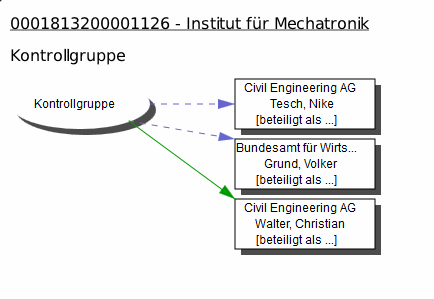
Via the button , an SVG diagram of the distribution list is generated and displayed. Green arrows indicate
that recipients receive documents. Blue, dashed arrows mark pure information recipients, to whom
information is sent but no documents.
Orange arrows point to recipients who do not receive documents directly in reproduction distribution lists,
but rather through the reproduction service provider.
Via Modify, the settings of all recipients marked with a checkmark are transferred to the distribution list, and all deactivated recipients are removed from the distribution list.
By pressing Save, you create a new distribution list. Adjust the distribution list name taken from the template accordingly. Personal distribution lists are visible only to you.