Trash
Topics
General
To remove documents and CAD documents (hereinafter referred to simply as "Documents") from the documentation that have already been set up, they must first be moved to the trash. To move them to the trash, you may not have the status Locked, Archived, or In Stock. They remain in the trash until they are either permanently deleted by a document manager or restored. Documents in the trash are marked as deleted and are neither available for editing nor for search within the documentation.
Move to Trash
Documents can be moved to the trash via their properties page, lists in document folders and indexes, or via the result lists of searches. Use the action .
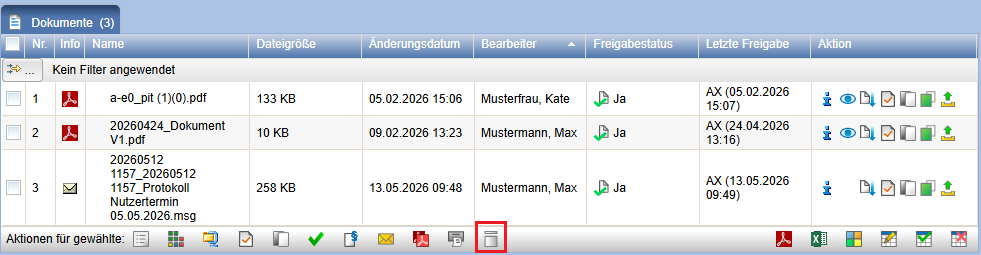
Before documents are moved to the trash, it should be checked whether links or references exist. Therefore, you should always answer the following question with Yes unless you intentionally want to skip this check because it will take some time, for example, when dealing with a very large number of files.
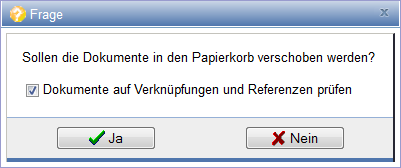
If the documents are to be checked for links, the check is now performed. The files are highlighted for which deleting would break links or for which no delete right exists.
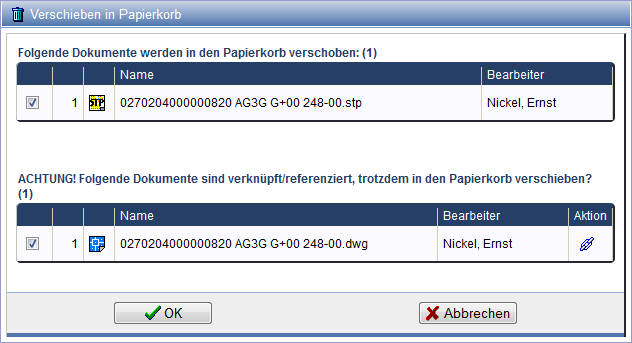
Via the action you can
display the current links. This display helps you decide whether the linked documents should still be moved to the trash.
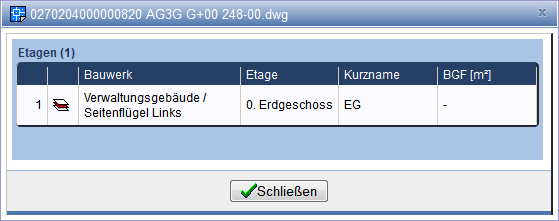
After you have moved the documents to the trash, they are recorded as "deleted" and can now be permanently deleted by the document manager. Documents accidentally moved to the trash can be restored by you.
Permanent Delete
Document Manager and Owners of Documents can delete documents directly depending on the configuration. A prerequisite for directly deleting documents for Editors is that no links exist. Thus, for example, accidentally uploaded documents can be deleted immediately.
Press the action . Now select the
Option Delete Permanently, to remove the document directly and permanently.
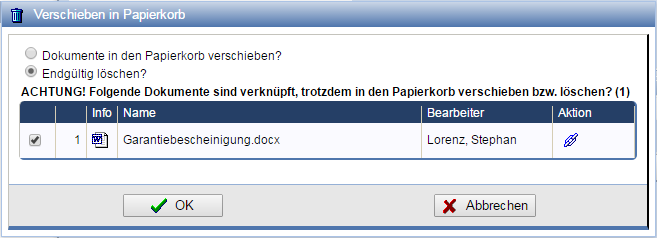
When deleting, the system automatically checks for links and, if necessary, offers an action to display them.
Restore
A document can be restored via Action .
If a document with the same name already exists at the original storage location, you still have the option
to restore it. In this case, the restored document will be provided with a corresponding serial number.
Display Trash Contents
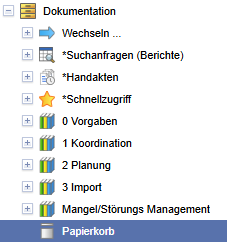
To display the trash contents, mark the node Trash. You will find this as the lowest node in the tree.
The trash contents are now displayed on the right side.
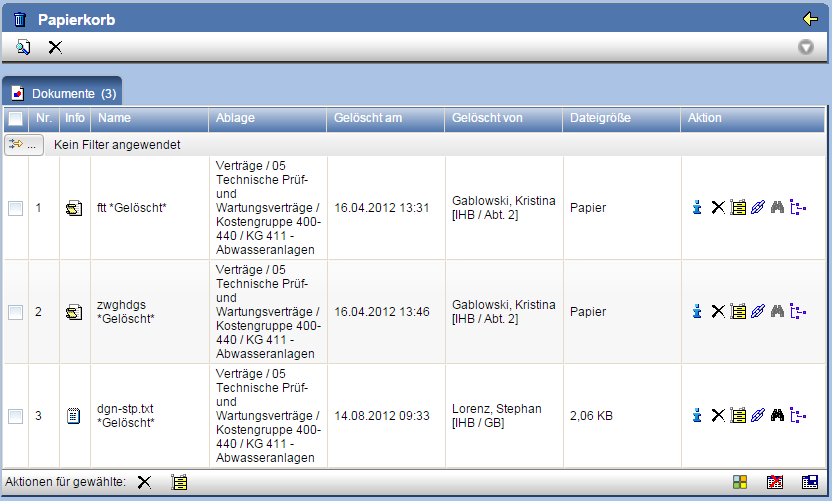
The following actions are available in the trash:
| Starts the Search for documents in the trash. | |
 |
Opens a dialog with object information. |
| Permanently deletes the documents. You can delete individual documents via the action column in the table, multiple selected documents via the footer of the table, or all together via the action bar of the trash. Permanent deletion is generally reserved for the document manager. | |
| Restores the document at its original storage location in the documentation. | |
| Displays existing links and CAD references. Here you can check what effects permanent deletion, e.g., will have on usage in other components, on input and output message journals, or on other areas in the documentation. | |
| Navigates to the former storage location of the document in the documentation. | |
| Switches symbol representation to thumbnail view or standard view. | |
| Loads the document from the server so that it can be viewed without restoring it. |
Display deleted documents in parts of the documentation structure
In the entire documentation, it is possible via Action to display the deleted documents in the selected
area.
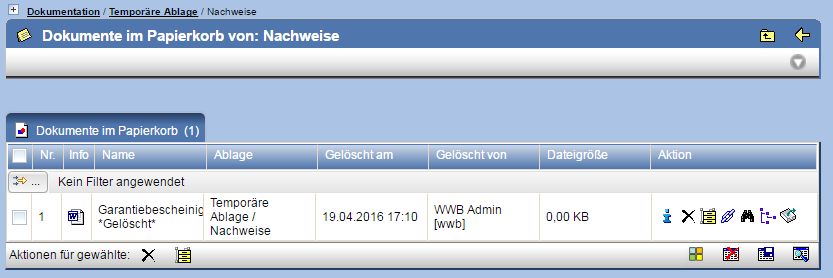
Here, individual or multiple documents marked as deleted can be restored .
Search in Trash
Via the icon in the action bar
of the trash, you can search for documents contained therein. In contrast to the
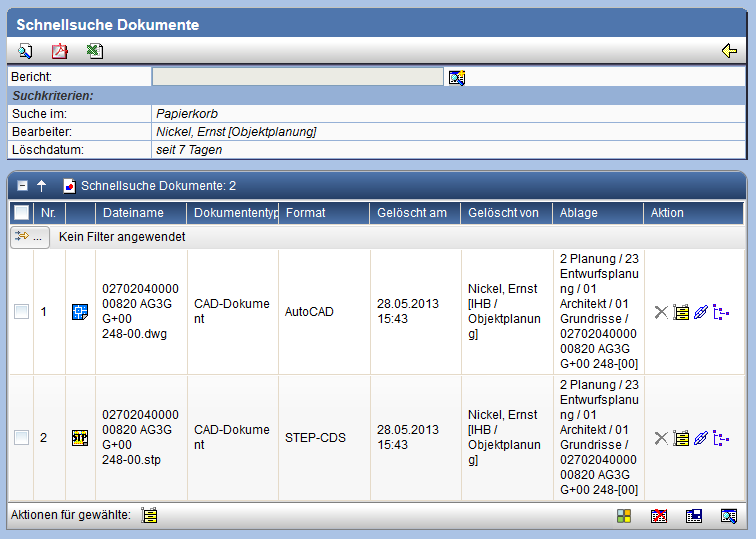
normal Search in the documentation, the specification of the deletion date is available as a search criterion.
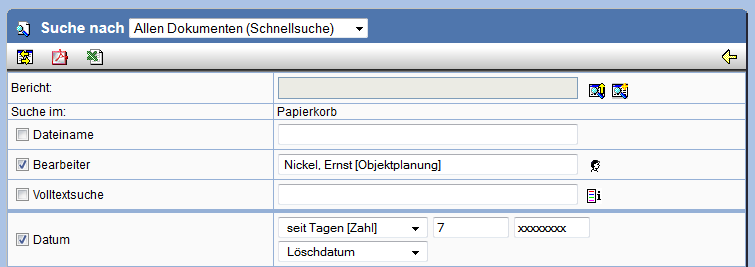
In the search results, additional information regarding the deletion date and the person who deleted the document is listed. Here too, actions for permanent deletion and restoration are available.