Thumbnail View
Thumbnail views improve clarity when working in documentation and other components. For this purpose, preview images for files are automatically generated based on the system used and displayed on the properties pages.
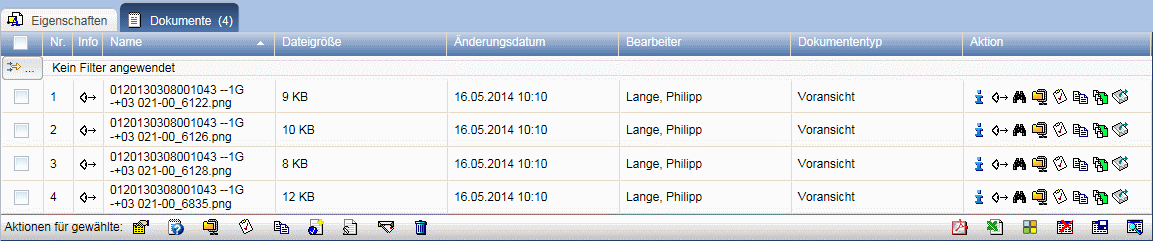
In document folders, in addition to displaying the contained documents in tabular form, you also have the option to display them as thumbnails. To do this, press the action in the Actions toolbar .
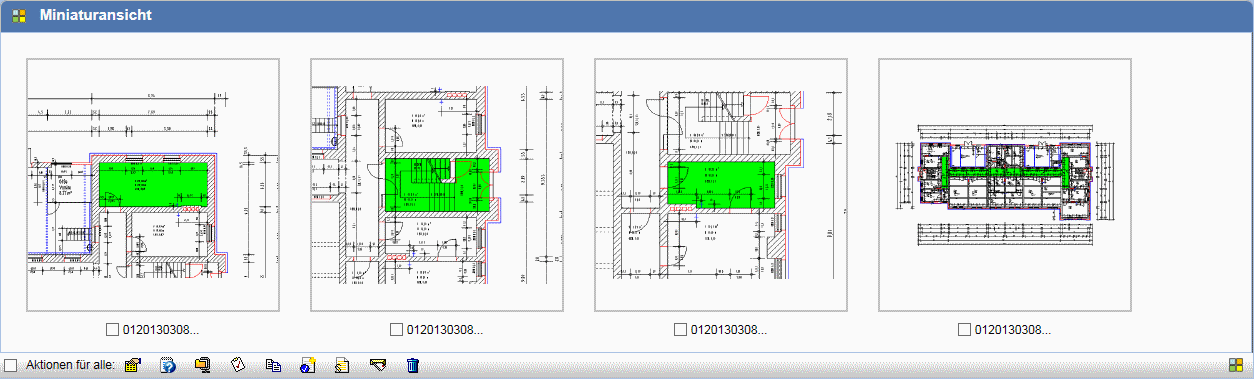
Depending on your personal settings , documents are displayed here either large or small.
With the symbol (or, if a small view is set:
 )
in the bottom right corner, the size can also be adjusted.
)
in the bottom right corner, the size can also be adjusted.
The same actions are available here both via the context menu and via Actions for all , just like with tabular display.
A click on a preview opens the properties page of the document.
To switch back to tabular form, press the action . The usual actions are available here.
For indexes of plan maps, an additional dialog opens which displays the CAD documents as thumbnails.
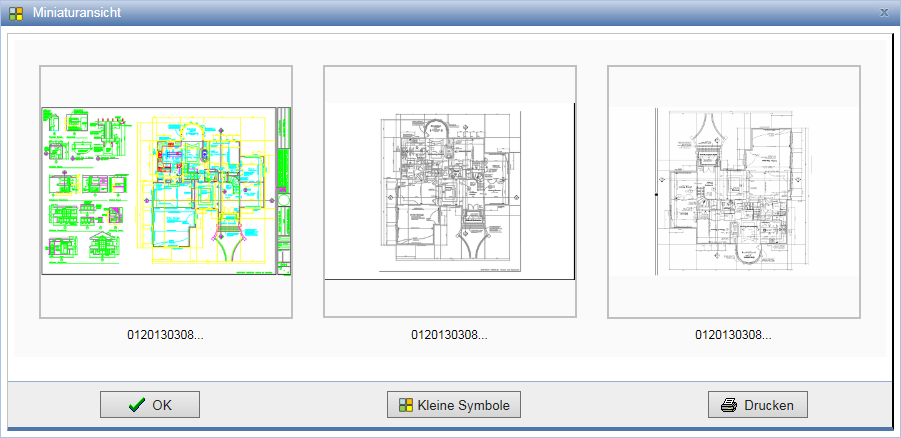
With the button (or, if a small view is set:
)
the display size can also be switched here, and with a PDF view of the CAD documents for printing is additionally opened. By clicking on a thumbnail, its properties page is opened.