Copy/Move Documents
Topics
Preparation
Documents can be copied or moved to a new storage location in the documentation. It is also possible to link documents with specific objects of other components, such as tasks, appointments, floors, or technical plants. The steps required for this are the same in all cases.
Similar to documents, Indices, Versions and Planning Folders can also be copied or moved. For further information, see the description of the Documentation Structure. Indices can also be linked with tasks and appointments. When moving folders into a folder with different coding, you may be prompted to adjust the coding.
First, add the documents via the action to the Clipboard. This can be done via tables in document folders, indices, via search results, or directly via the properties page of a document.
Insert Documents
Now open the properties page of the target location. In the documentation, documents can be inserted into document folders, indices, or versions. Here, call up the action .
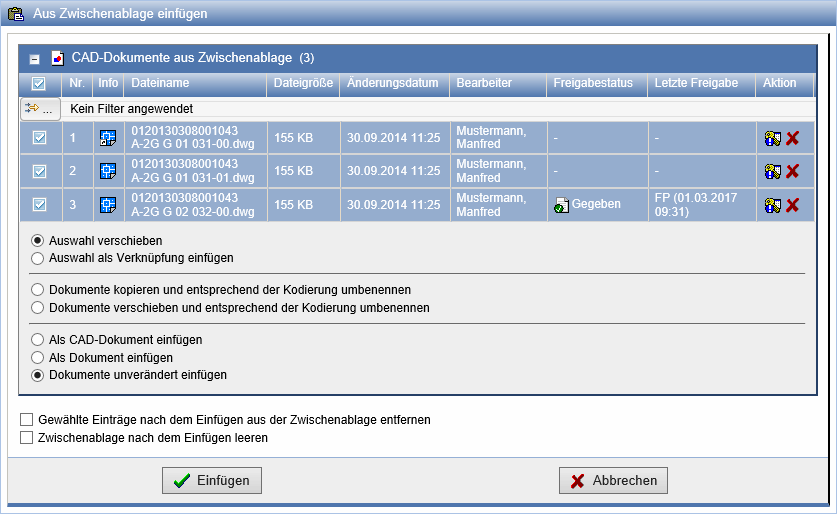
If write permission exists at the target location, the following options are available to you in the documentation:
| Insert Documents as Copy | A copy of the original document is created and stored at the destination with its original filename. This is set as the default setting. |
| Insert documents as link/CAD reference | Links or, when inserting CAD documents, CAD references are created that point to the original documents. |
| Move documents | The documents are removed from the source location and inserted at the destination. For this action to be successfully executed, a delete permission must be present. |
| Move documents and rename according to coding | This action is only available when coding for CAD documents is set in indices. After moving, the files are renamed according to the target coding. |
| Insert as CAD document | This option is only available when inserting into plan folders. All files in the clipboard are inserted as CAD documents and converted if necessary. |
| Insert as document | All documents in the clipboard are inserted as documents and converted if necessary. |
| Insert document unchanged | None of the documents are converted upon insertion. |
Upon insertion, all marked documents are taken into account. If you do not want to insert one or more documents, remove the checkmark in the corresponding line. With the action you can
remove documents from the clipboard and access them with
the access rights to the document are displayed.
If the documents should be removed from the clipboard after the action, select the option Clear clipboard after insertion. If only the inserted documents should be removed from the clipboard, select Remove selected entries from clipboard after insertion.
Drag-and-drop
Documents and CAD documents can be moved using drag-and-drop. To move, drag the document to a document folder or an index in the documentation tree on the left side.
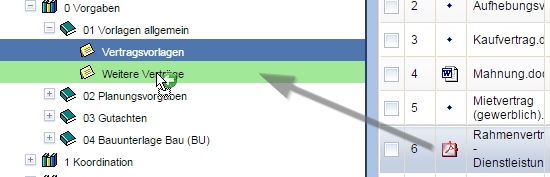
To copy a document, hold down the CTRL key while moving.
To create a link, in addition to the Ctrl key, hold down the Shift-key must be held down.
Adjust permissions
When documents are moved to other areas of the documentation, different access rights may require adjustment. The access rights resulting from the owner's group and the additionally specified groups of the target repository will be displayed to you.
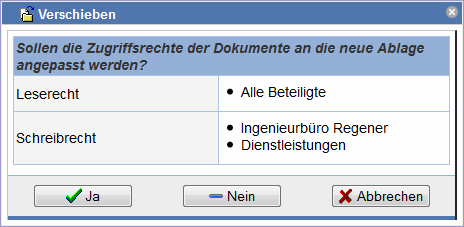
By pressing Yes the displayed rights for the document are accepted, by pressing No they remain unchanged. If the access rights are not adjusted, it is possible that the document will not be displayed for otherwise read-authorized members in the target repository.
Convert Documents/CAD Documents
Although documents and CAD documents can coexist in plan folders, they have different properties. It may occur that a document needs to be converted into a CAD document, or vice versa.
To convert, press the action  in the action bar of the corresponding CAD document, and the action
  for a document.
During conversion, an attempt is made to retain the attributes as much as possible.