Search
Topics
General
Objects can be compiled and displayed using known criteria defined by you. Simply use the comfortable search function. The search results are displayed in a table format and can subsequently be further processed. Browse through the found objects directly in the corresponding Work Areas and have their properties displayed. Recurring search requests can be saved as Reports.
Perform Search
The search is opened via the navigation bar or the context menu:

This action is possible both within and outside of projects. First, select in the upper area which objects you want to search for.
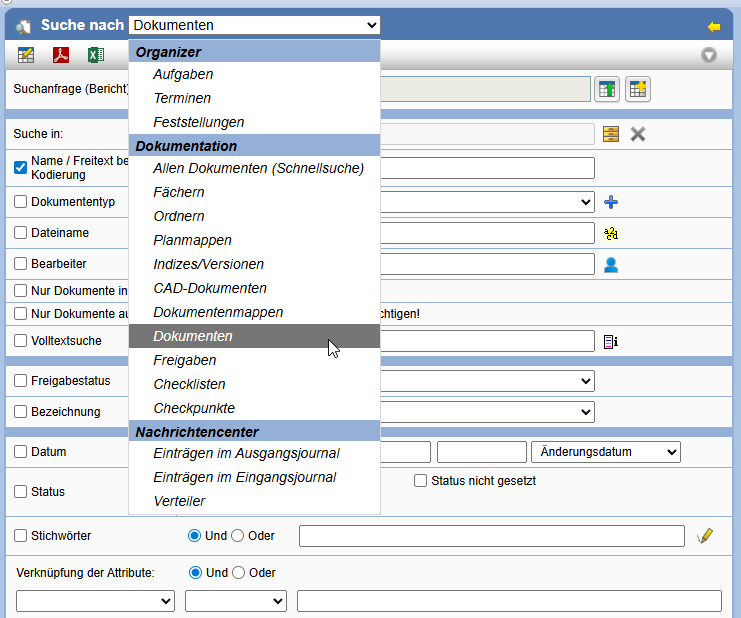
Now enter the desired criteria with which the found objects should match. By specifying multiple criteria, you refine the search query.
Depending on the view you are in, a search criterion is predefined. If you use a different search criterion, the server remembers the last search and suggests this as the search criterion for the next search. After logging off from the server, standard searches are restored.
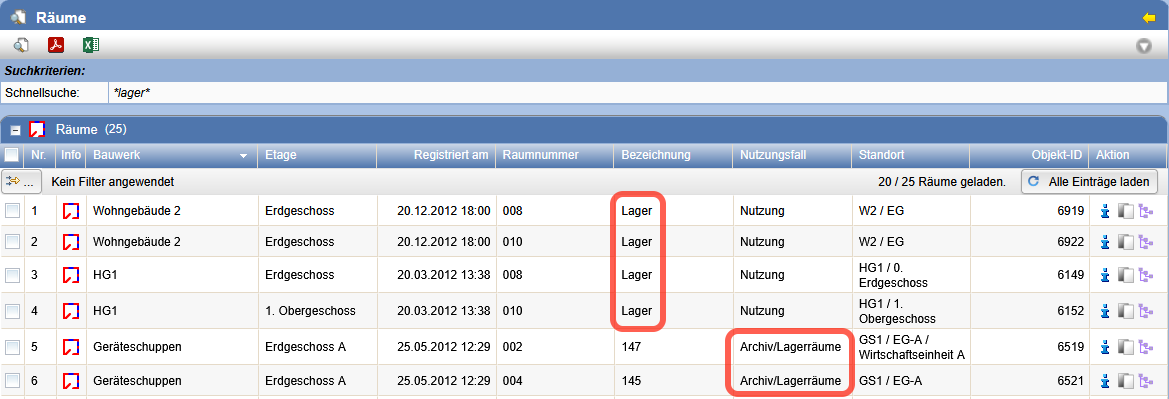
In your search for objects, you can work with placeholders (wildcards) in any free text field of the search form. Placeholders replace any number of characters at any position in your search term. Multiple search terms with placeholders can also be added during a search. Placeholders can also be inserted before and after a word stem.

The following placeholders can be combined freely:
| * | Stands for any number of any characters. Example: An entry Schmi* in the name finds all names that start with Schmi start. For example, Schmidt, Schmid, but also Schmirr. If the placeholder * is specified without further characters, the search result includes all values. |
| ? | Stands for exactly one arbitrary character. Example: The entry M?yer finds all Mayer and Meyer. |
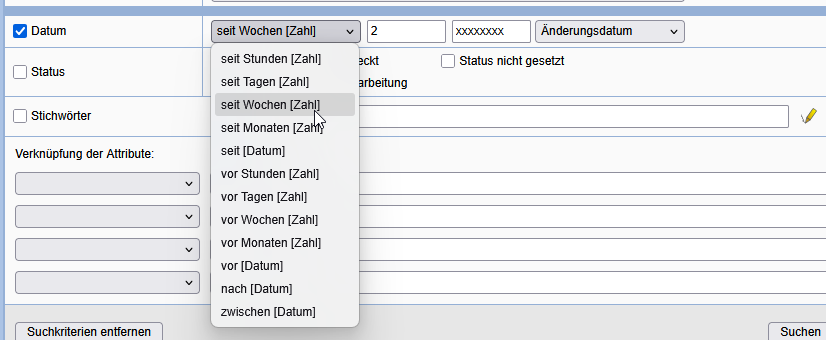
For some objects, you can search by time values. Check the Date box and set the desired time range.
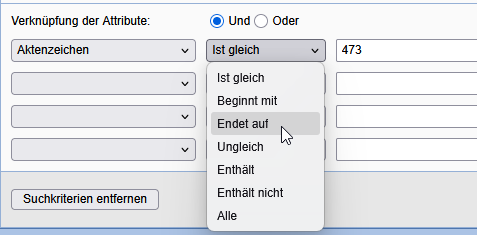
Additionally, it is possible to search by additional attributes. Select the desired attribute, define the search condition, and enter the value for the search.
After pressing Search the result is displayed as a table.
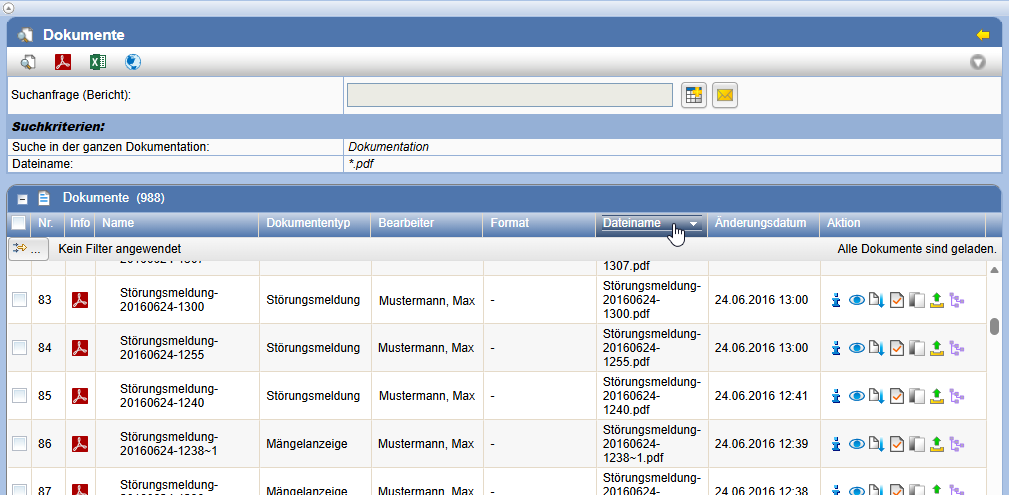
The search result can be sorted or filtered according to various criteria. Click on the respective column name at the top of the table to sort.
Further processing with files generated from the list is possible.
Quick Search
Using the quick search, you can search for any search terms in the selected object type directly below the navigation bar via the continuous search bar without opening the search form. The search term is searched in all attributes of the selected object type.

Placeholders are also allowed in the quick search. All objects are searched for which the search term occurs at least once.
Link to search request
On the results page of an executed search in a project can be sent by the action Send search request via e-mail a link to the search results can be sent to members of the project.
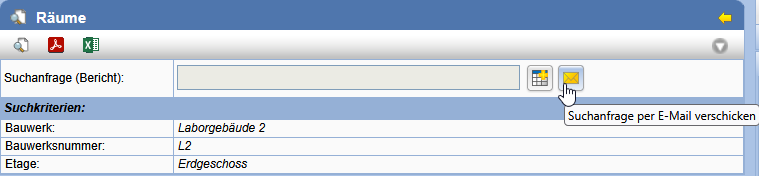
This opens the e-mail form with a template that includes a link to the search. When this link is called, the search is executed. The search results thus always correspond to the current status at the time of the call. Please note that the results can change not only due to changes made in the meantime but also due to different access rights of the members executing the search.
You can also call the link inserted into the e-mail form via another action directly.

Adapt result display
By pressing the icon in the action bar, you can adapt the display of the search results. A dialog is opened in which you can select the attributes to be displayed.
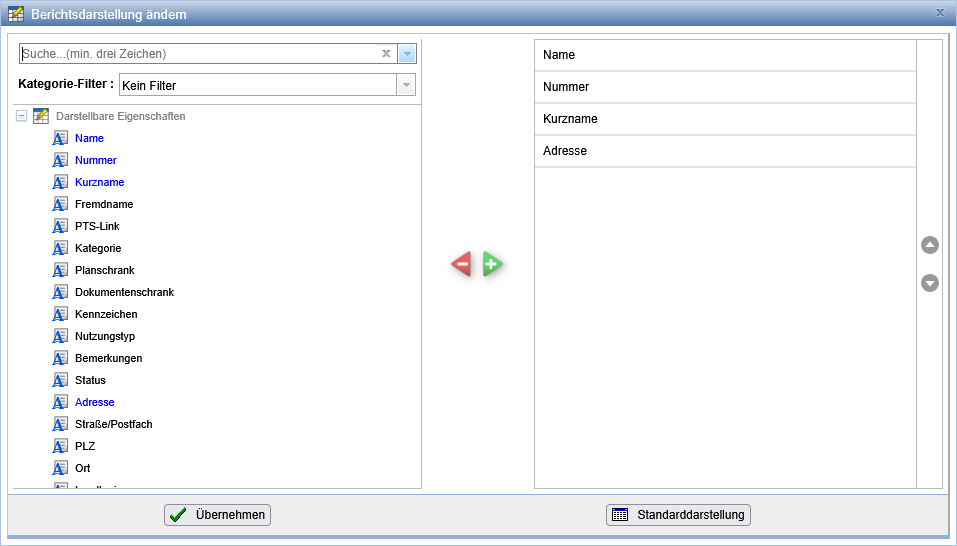
In the left column is the list of attributes available for the object type. In the right column are the attributes that are displayed in the result table. By drag & drop or via the symbols + and - after selection, you can adapt the attributes to be displayed. To adjust the order of the displayed columns, move the corresponding attribute on the right side by drag & drop or with the arrow keys after selection up or down.
With the button Standard display the default settings for the column selection can be restored.
With the search field of this dialog, you can search for attributes in the left column. Results appear after entering at least three characters.
With the help of the category filter the attributes in the left column can be filtered according to their respective categories. Non-matching attributes are hidden during this process.
You can also change the display directly in the table of search results with the action for setting the column display . Thus, this function can also
be used for the quick search.
Output of results as file
The results of a search can be output as a PDF file or as a file in Excel format.
You can filter and sort tables according to your desired criteria. The selected filter settings and desired sorting will be included in the PDF or Excel report.
Do you want a PDF report created, press the action .
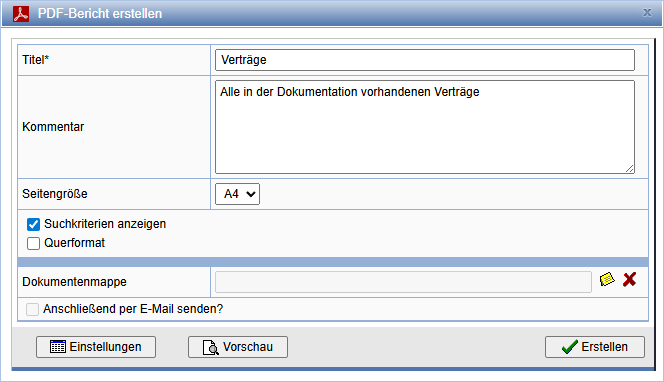
Enter a title for the document, as well as a comment. Select the page size to be created, the orientation (landscape) and whether search criteria should be displayed.
If you want to create a document in Excel format, press the action .
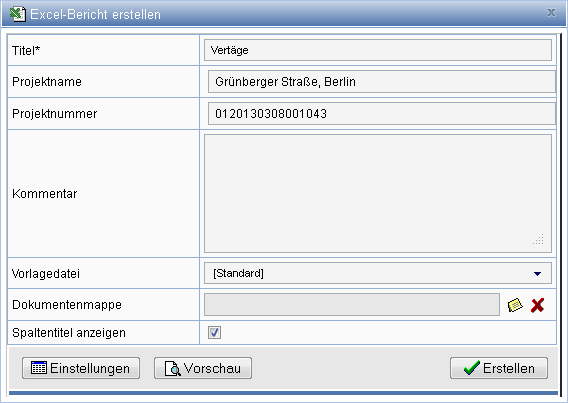
Enter a title for the document, as well as a comment. If available, select a special template file and whether column titles should be displayed in the table. If all objects found during the search are part of the same project, there is additionally the possibility to import the project name and project number. For values of certain attributes in e.g. floors, a sum can be generated below the corresponding column. To do this, set the checkmark in the corresponding row.
Via the button Settings you can influence the output format of the PDF or Excel report. You can specify both the column width and adapt the table headers according to your wishes. Confirm your settings with OK.
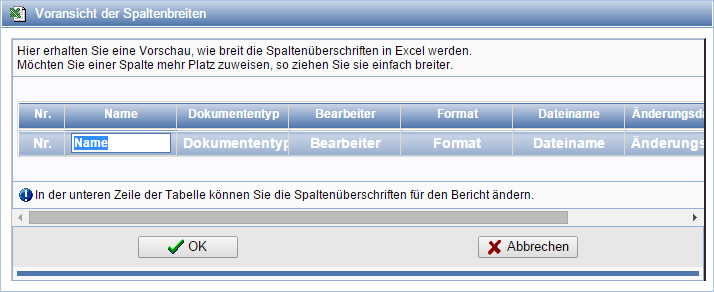
Via the button Preview a preview of the report to be generated is generated and displayed.
To change column headers for the report, click them in the second line and enter your own header. Subsequently, you must click on another column to save the change.
The button Save is available when a report is loaded. Here, the settings made such as column widths and headers can be transferred into the report.
By pressing Create the document is created and is displayed depending on your browser configuration or is available for
downloading. If a document has been created, it can subsequently be opened via the action or saved to the local file system.
When searching for tasks and deadlines, you can save the result by pressing
as a zipped iCalendar file (.ics) to be able to import it later into Microsoft Outlook.
Importing reports into the documentation
Reports can be stored in the documentation as PDF and Excel tables. To store the report in the documentation, select
the action  .
.
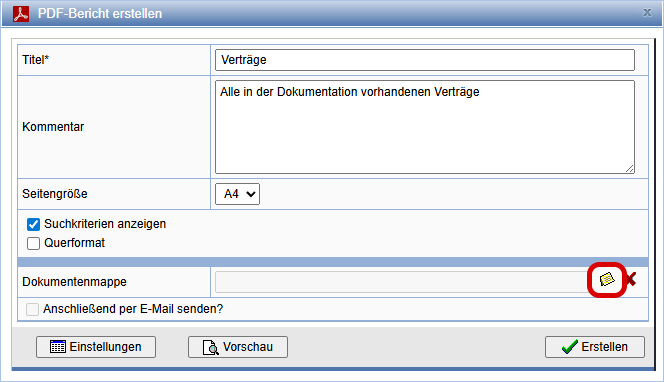
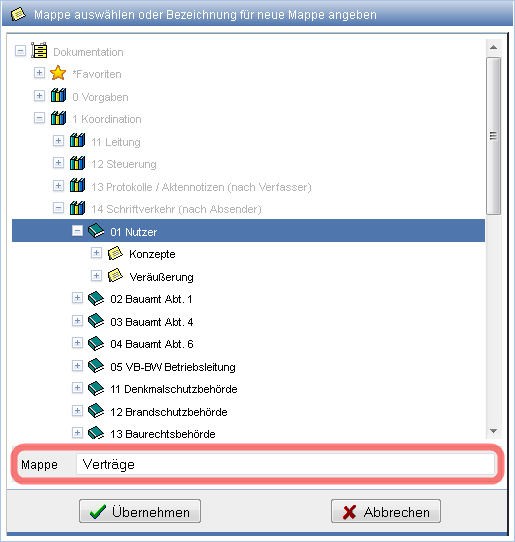
In the following dialog, select an existing folder from the documentation, or create a folder in the field Folder. Please note that folders can only be created within directories.