Search Queries (Reports)
Reports allow you to save and quickly retrieve defined search queries. Search queries include both the search parameters and the settings for displaying the results.
Load Search Report
Search reports provide a simple way to perform recurring search queries. To access them as quickly as possible, they are displayed by default in the tree under *Search Queries (Reports) from here. From here, they can be directly accessed by clicking on them. In the Personal Settings you can enable or disable the display of search reports in the tree.
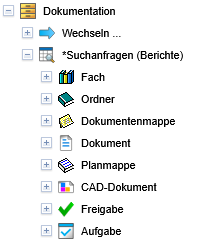
In addition to the saved personal and provided search reports, the overviews within a project contain your last performed search query for the corresponding object type, which can be executed again, loaded, and optionally added to your permanently saved search queries.
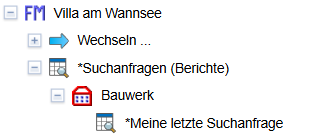
In the search report overview, these are displayed as buttons. When clicked, the corresponding search is loaded and executed immediately, so that you reach the search results right away.
Search reports can also be selected and loaded in the search mask next to the field Report via the action .
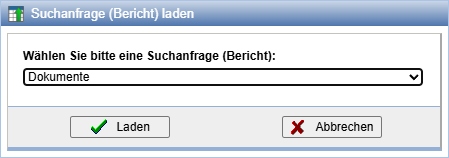
Select the desired report now and press Load to restore the report.
Please note: If you are searching in the repository, searches loaded in this way do not overwrite the search setting Search in, which can restrict the search to certain parts of the repository.
| Note: | Search reports are available in every component, including the Project and Organization views |
Create Search Report
To transfer the entries in a search mask into a report and restore them later, press after completing the entry of the search and display criteria in the line Report
the action to save the
Report.
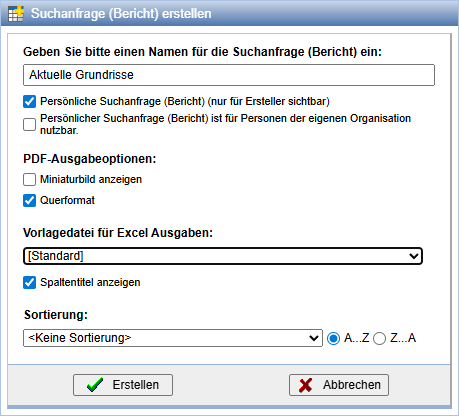
Enter a name for the report. By selecting the option Personal Report, this will be available only to you. The ability to change this option depends on the configuration and the roles assigned to you. Personal reports can optionally be made available to members of your organization.
Additionally, configurations regarding an Excel export can be set.
These are automatically applied for the Excel export when loading the report.
An Excel template can be selected. The option Show column headers determines whether the corresponding title should also appear above each column in the export for every displayed attribute,
and via Show thumbnail large icons are displayed in the table.
The configurations can be adjusted again after loading if necessary.
Additionally, a default sort order for the results can be specified.
Edit Search Report
After loading or creating a report, the name is displayed in the search mask in the line Report. If you make changes to the search criteria or the display, the line is supplemented with the entry (changed).

Press to
save changes to the search report.
In the following dialog for changing report properties, you can change the name, update the settings, and/or change the property to be a personal report or visible to all. To change only the name of the report, deactivate the option Update search criteria and result display.
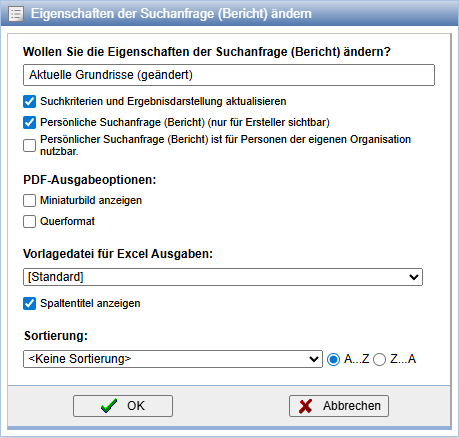
By pressing , the currently loaded report is deleted.
Other Actions
Via the context menu of reports in the tree view additional actions are available.
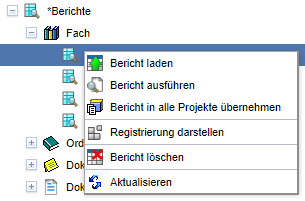
| The selected report is displayed here in the search mask. | |
| The selected report is executed and the search results are displayed on the right side. | |
| This action is reserved for the role Project Manager. Reports defined within a project are only available in that respective project. With this, the selected report can be transferred to all projects. Thus, it does not need to be created manually for each project. | |
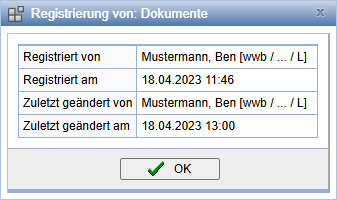
Information regarding the creation and last modification of the report can be viewed here.
 |
|
| The report is permanently removed from the project. | |
| The tree view is reloaded. |