Sidebar
Topics
Notifications
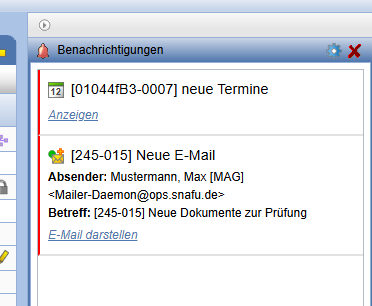
Notifications can be enabled for various scenarios in the Personal Settings to enable or disable. These scenarios include:
- Receiving an email
- Completion of an order
- Import of a (CAD) document
- Release of a new planning status
- Creation of appointments and tasks
- Assignment of an approval
Outside the project, only notifications regarding received emails and completion of orders are sent.
Notifications are temporarily displayed as a speech bubble at the bottom right in PlanTeam-SPACE and permanently as a separate card on the right next to the sidebar.

All notifications are listed in the sidebar, with new entries marked in red upon clicking a new message, the red marking is removed and the message is considered read.
By clicking View, the affected object, such as the new document, is displayed in a table.
With the action can simultaneously remove all notifications at the top right, or remove them individually next to each notification.
Clipboard
The sidebar includes a compact version of the Clipboard.
Once an object is inserted into the clipboard, it is also available via the sidebar on the right edge of the browser window.
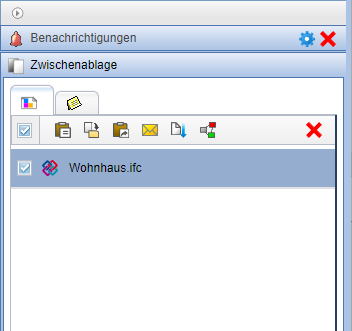
Here, the inserted objects are displayed in an overview and sorted by category in tabs. If the sidebar is open, objects such as documents can also be easily moved via Drag&Drop into the clipboard and from there again via Drag&Drop into other objects.
The available actions within the sidebar are context-sensitive. Grayed-out symbols indicate that this action cannot be applied to the currently selected object. The following actions are possible:
| Insert as Copy | |
| Move | |
| Insert as Link | |
| Send as Email / Message | |
| Download the (CAD) documents compressed by PTS (Only available for (CAD) documents) | |
| A Workflow with the selected object | |
| Expand the object in the corresponding tree (only available in the context menu) |
The actions can be executed both via the buttons in the action bar and via a context menu (right-click). A previously made selection is taken into account here.
History
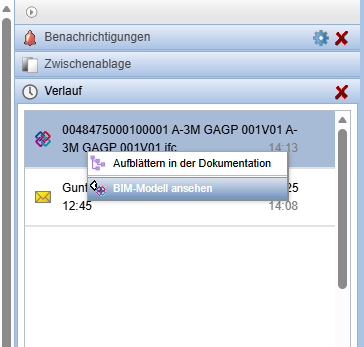
In the card History the last opened objects are listed. When clicking on the object, the associated properties page is opened. Further actions are available via the context menu.
Quick Access (Actions)
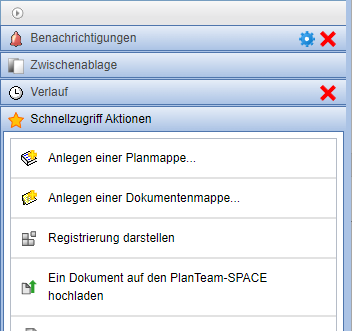
In the Quick Access the last executed actions are listed, thereby accelerating workflows.
| Note: | By default, the sidebar overlaps other elements of the window. In the personal settings this can be changed with the option Display sidebar overlapping so that the elements of the bar automatically adapt to the window. |