Create and Modify Distribution Lists
Topics
| Note | To create and edit distribution lists that can be used by all members, you must have the role Communication Manager. Personal distribution lists can be created and edited by any member but are available only to that member. |
Overview of Existing Distribution Lists
Existing distribution lists can be displayed as follows:
Open the Message Center and select the root node (topmost dot in the tree structure on the left). The page Configure Message Center opens and initially displays personal distribution lists.
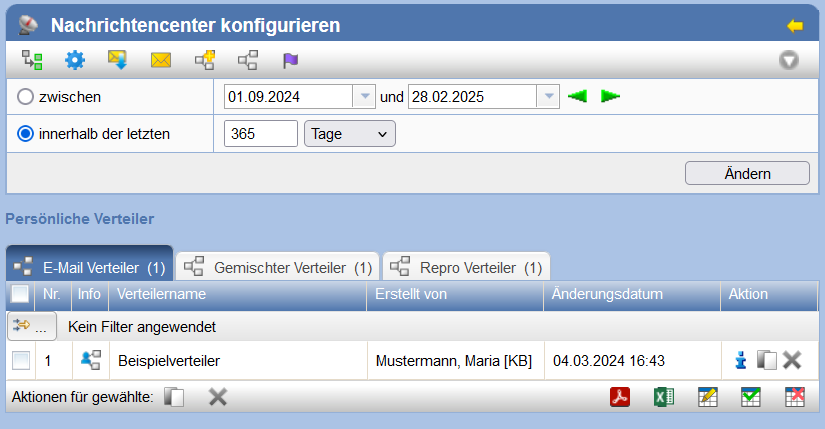
Using the actions and
in the Actions bar,
you can switch between displaying global and personal distribution lists.
Create Distribution List
Several options are available for creating distributors:
- Via the E-mail form (easiest variant)
- In the Message Center with manual addition of individual recipients
- By creating a group distributor
Create a distributor via the E-mail form
Distributors can be created most easily via the form when creating messages / e-mails.
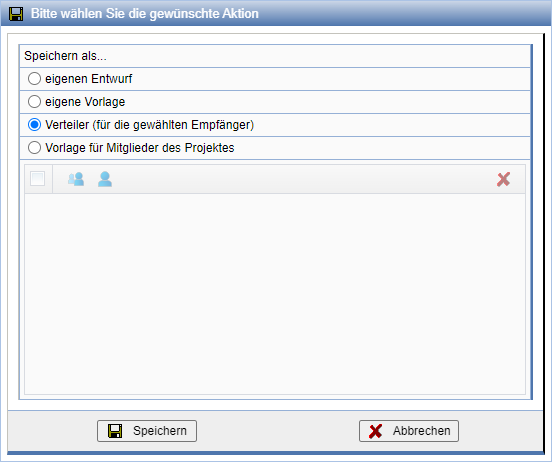
Open the form for creating an e-mail / internal message at any location. Add all persons who should become recipients of this distributor and press Save. Optionally, you can also add external recipients here. Then select the option save the selected recipients as a distributor and press again on Save.
Now complete the details for the distributor. For processors, distributors are created as personal distributors. This means that they are only visible to you. Communication managers must activate the option Personal Distributor here; otherwise, they will be created for all project participants. With the option The distributor may be used by your own organization access rights for members of your organization are extended.
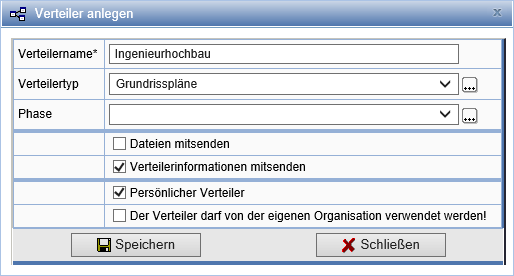
The option to send files can remain disabled if the recipients have access to the PlanTeam SPACE.
Create distributors in the Message Center
To create a distributor in the Message Center, click on the symbol  in the menu bar of your
Message Center.
in the menu bar of your
Message Center.
Now enter a name for the distributor and set the desired options. By default, the distributor is created as a personal distributor. This means that it is only visible to you.
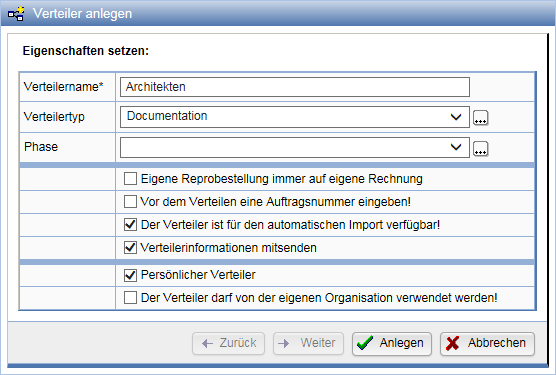
| Own repro order always at own expense | If this option is enabled, it is checked whether the project member triggering the repro order is included in the recipient list themselves, or whether persons from the same organization are included in the recipient list. If this is the case, then no external billing address (bill to) can be specified for the repro order. |
| Enter an order number before distributing | This number can be integrated into the generated cover letters. For this, the corresponding key must have been defined in the cover letter template. |
| The distributor is available via Automatic Import | When the option is disabled, this distributor cannot be used when uploading documentsautomatic importto be carried out. |
| Personal Distribution List | When the option is set, the distributor is visible only to you; otherwise, it is visible to all project participants. |
| The distributor may be used by the own organization | Access rights to the distribution list are expanded to include members of your organization. |
Create Group Distribution
Distributors can also be created for groups. When creating such a distributor, the members of the group are automatically suggested as recipients of the distributor.
To create a distribution list, select the group for which you want to create a distribution list. Now press the Action in the action bar
of the group.
in the action bar
of the group.
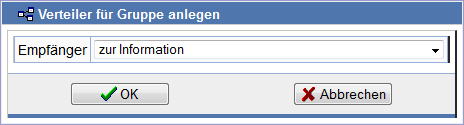
Now specify what type of recipients the distribution list should have. Distribution lists do not receive their own name, but rather that of the group.
After pressingOKthe group distribution list is created and the properties page is opened.
Edit Properties
If you click a distributor in the list of distributors, its properties page is called up.
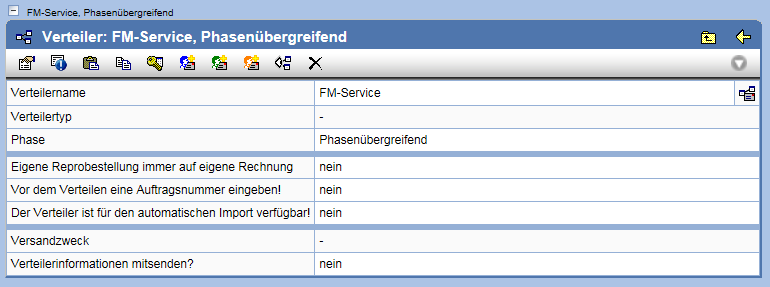
The following actions are available:
| Changing Distributor Properties | |
| Information on creating and modifying the distribution list. | |
| Display the distributor as a diagram. | |
| Insert recipients from the clipboard into this distribution list. | |
| Add the distributor to the clipboard. Subsequently, the distributor can be used in the Message Center via the action |
|
| Changing access to the distribution list (Exchange Manager only) | |
| Creating an Information Recipient | |
| Creating a Document Recipient | |
| Creating a Repro Recipient | |
| Deletes the Distribution List |
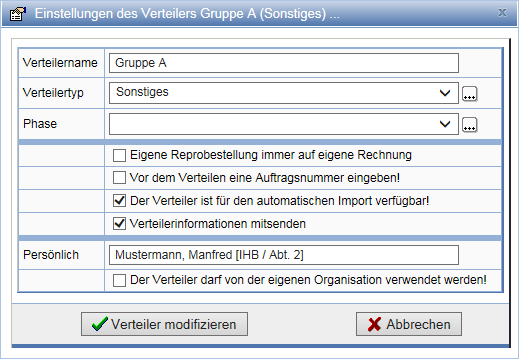
Via the action in the
Actions bar, you can adjust the properties of the distribution list. With Modify Distribution List your changes are saved.
Add Recipient
If additional recipients are to be added to an existing distribution list, open the properties page of the distribution list and select one of the following actions:
| Creates an Information Recipient. Information Recipients receive an email with information about the object; no documents are sent. The recipient can access the documents via generated links. |
|
| Creates a Document Recipient. When sending emails in a distribution, documents are attached. If multiple documents are sent, attachments are automatically compressed and distributed across multiple emails when a configured limit (e.g., 5 MB) is exceeded. |
|
| Creates a Repro Recipient. Repro Recipients do not receive emails directly during a distribution. Instead, the documents to be distributed are sent to a repro service provider specified for this distribution list. This provider creates the documents according to the order and sends them to the recipient. |
| Note | A repro service provider must exist in the project for Repro Recipients. |
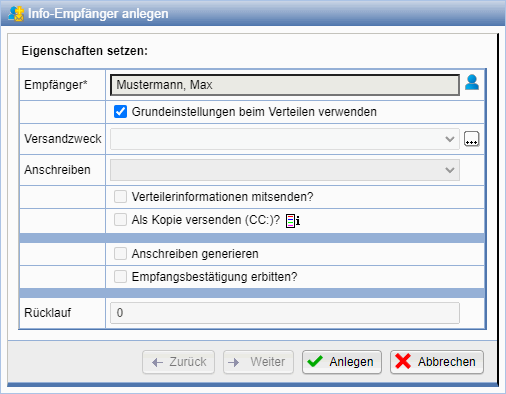
First, select the person intended as the recipient via the action . Each person can be selected at most once per recipient type for a distribution list.
When creating the recipient, the default Basic Settings of the distribution list are used. If you want to make individual settings for the recipient, deactivate the option Use Basic Settings when Distributing.
Basic Settings
In the distribution list overview, you can open the basic settings of the distribution process by clicking on next to the name of the distribution list.
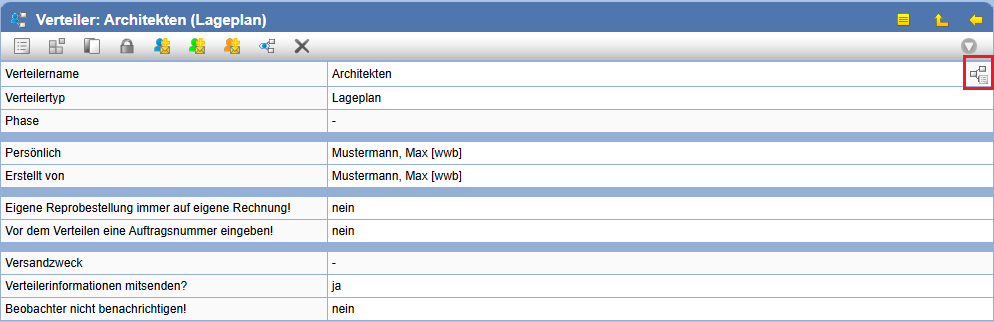
The basic settings include the most important key data of a distribution.
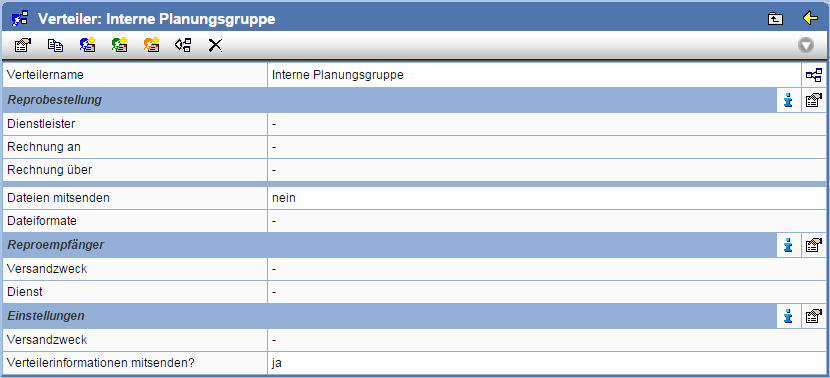
The following actions are available:
| Return to the Distributor Overview page | |
| Displays the respective basic settings on an overview page. | |
| Directly change the respective basic setting |
Settings for Repro Order
These settings relate to the order with a repro service provider. They only come into effect when Repro recipients have been added in the distributor.
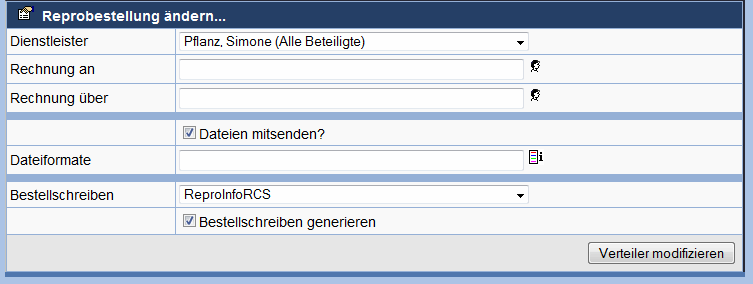
The following settings can be made:
| Service Provider | Select a Repro Service Provider here. Only companies defined as Repro Service Providers and accepted as members in the project are available. |
| Bill To | Select the person here to whom the invoice for reproduction will be issued. This entry is optional and informal. |
| Bill Through | A person can be selected here who should initially receive the invoice, e.g., to review it. |
| Send Files | When this option is set, documents are attached when sending the email to the service provider. If the service provider should download the documents directly and can do so, leave the option deactivated. |
| File Formats | Specify file extensions that should be considered when attaching to the mail (e.g., *.plt; *.dwg). |
| Order Letter | Select an order letter here. The selection is only available if the following action is activated. Only configured order letters are available. |
| Generate Order Letter | Activate this option if an order letter should be generated for the Repro service provider. |
Settings for Repro Recipients
These settings relate to the specific order for individual recipients.
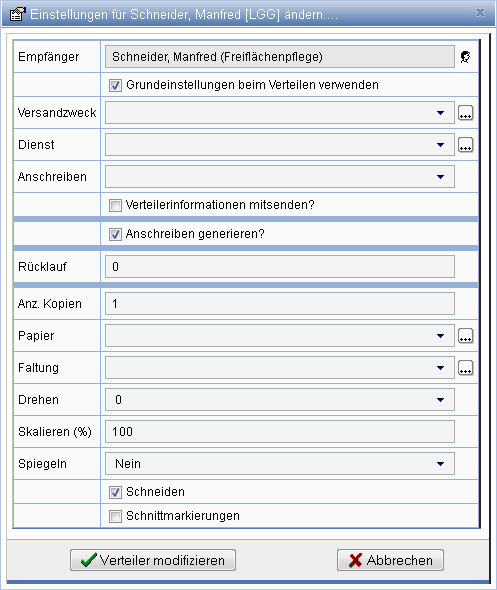
The following settings can be made:
| Shipping Purpose | Selection of information regarding the purpose of shipping |
| Service | Information about the service with which the files are to be sent. |
| Cover Letter | Selection of a configured cover letter template |
| Send Distributor Information | Optionally include the recipient list in the cover letter text. |
| Generate Cover Letter | When this option is set, cover letters are generated for each recipient according to the configured template and sent to the repro service provider. |
| Return | Information about the number of days by which the reprographics should arrive at the recipient. |
| No. of Copies | Specification for the repro service provider indicating how many copies to produce. |
| Paper | Details regarding the format or type of paper to be used. |
| Folding | Specifications for folding the plans. |
| Rotate | Specification of whether and to what extent the plans should be rotated during plotting. |
| Scale (%) | Factor for resizing the plot. |
| Mirror | Information about the axis for a mirror operation. |
| Trim | Specification of whether margins should be trimmed if the used paper is larger than the specified format. |
| Trim Marks | Specification for setting trim marks, in case trimming is not required. |
Recipient Settings
These settings apply to all Info and Document recipients.
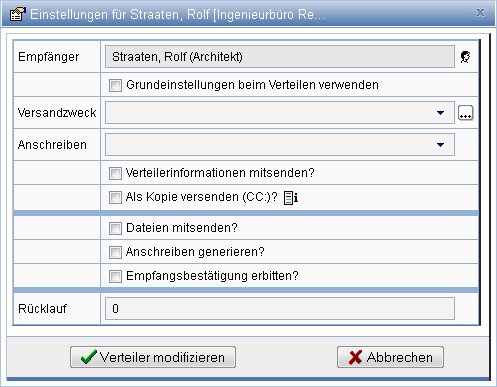
The following settings can be configured:
| Shipping Purpose | Selection of information regarding the purpose of the shipment. |
| Cover Letter | Selection of a configured cover letter template. |
| Send Distributor Information | Optionally include the recipient list in the cover letter text |
| Send as copy (CC:) | When this option is selected, recipients receive the email as a copy (cc:) and not directly (to:) |
| Attach files | When this option is selected, documents are attached when sending the email. If you want the recipient to be able to download the documents directly, leave this option disabled. |
| Generate cover letter | When this option is selected, cover letters are generated for each recipient according to the configured template and sent to the repro service provider. |
| Request receipt confirmation | Requests confirmation of receipt |
| Return | Information about the number of days by which the reprographics should arrive at the recipient's location |
Change access rights
With the action in the
Actions bar, you can determine access to the distribution list.
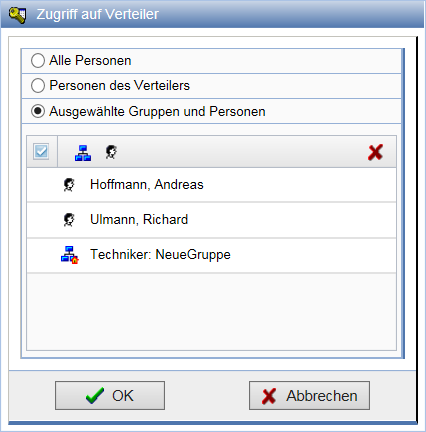
The following options are available:
| All persons | All members of the project can use this distribution list. A distribution list with this configuration is a global distribution list. |
| Distribution list persons | The distribution list is available only to members included as recipients. It is a global distribution list, and can therefore only be edited by Exchange administrators. |
| Selected groups and persons | Only the groups and members selected here can use the distribution list. If only one person is selected, it is their personal, otherwise it is a global distribution list. |
| Note | Changing the access rights of distribution lists is possible only for members with the role Exchangemanager allowed. |