Start Process (Workflow)
Processes/Workflows are used to define procedures for document processing. During the flow of documents and plans, shipping processes, approval assignments, and dwell times can be controlled and logged. The current processing status is always traceable.
To start a workflow, proceed as follows:
Copy the corresponding documents, CAD documents, or indices/versions with the icon Documentation
into the clipboard using the icon in the Clipboard.
Then click the icon
in the main menu bar. The Batch Order/Clipboard window will open on the right side.
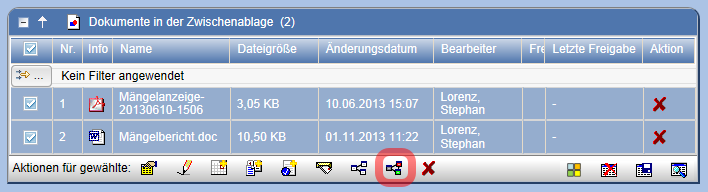
If individual documents should not be included in the workflow, remove them by pressing . Then click the icon
to start a workflow. If the icon
is not displayed, no suitable workflow templates are available for you.
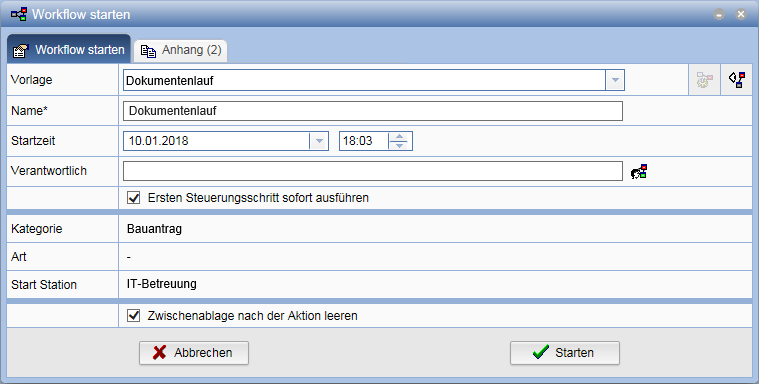
In the field Template select the desired workflow. Only workflows where you are involved as the first processor are available. Depending on the template, only certain documents may be allowed for a workflow. If documents are not permitted, you will be informed via an overview of the corresponding documents before starting.
Using the action allows you to customize Ad-Hoc workflows for specific application cases. You can disable stations or change assigned persons/groups using the icons
and
 for this purpose. The corresponding option must be set for the station. Customization options for an Ad-Hoc workflow remain available after starting, provided the respective station has not yet been visited.

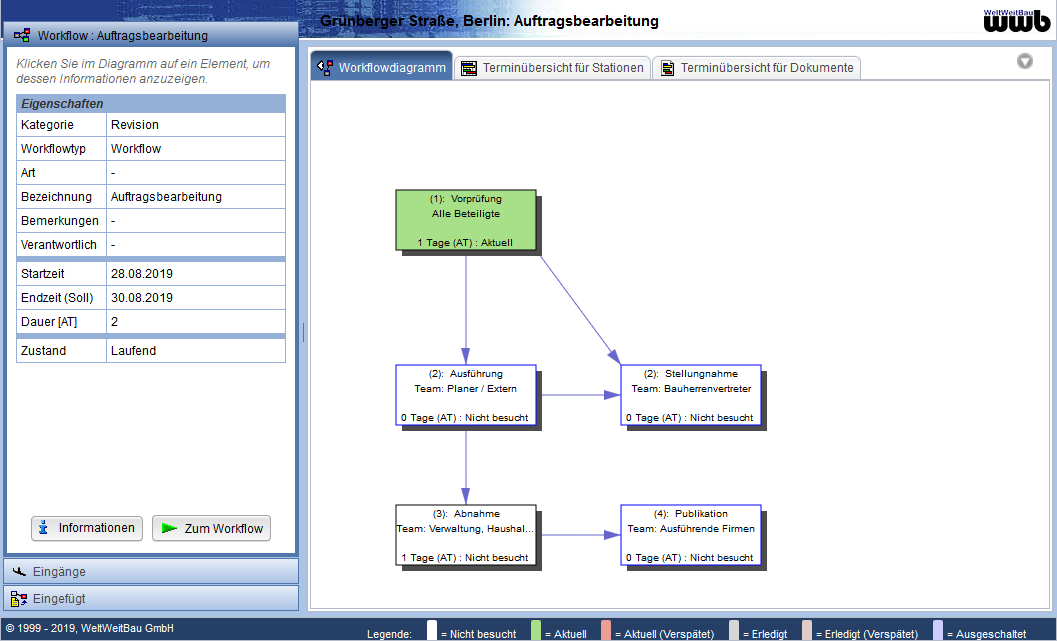
Using the icon you get the diagram view of the workflow. This can be zoomed in or out using the mouse wheel.
In the field Name enter the desired name for the plan run.
In the field Responsible can be set via the icon a Workflow Owner. This person has the same rights as the Workflow Manager for the associated workflow.
If you select the option Execute First Control Step Immediately , the documents are immediately forwarded to the next station. The required input dialogs are displayed automatically after starting the workflow. Select this option if you have already completed all necessary edits to the documents for the current workflow.
Using the button Submit starts the workflow and sends the documents to the first station.
In the tab Attachment you see the documents assigned to the workflow at startup.
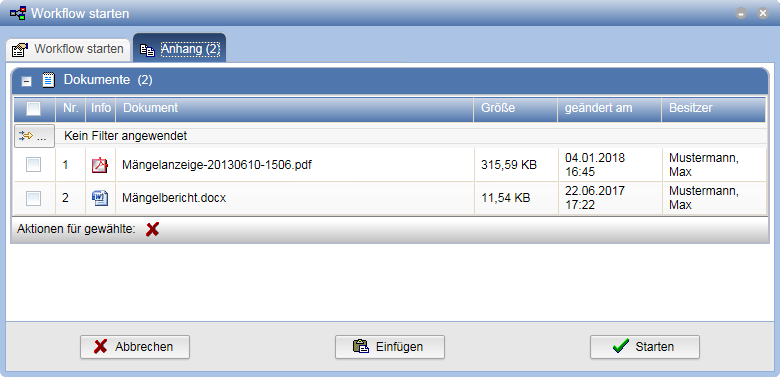
Here, you can remove documents by selecting the corresponding entries and then clicking on the action .
Additional documents can be inserted via Drag&Drop or from the clipboard using the button .