Manage People
Topics
| Note: | To use the following functions, you must be logged in as Administrator or as Project Manager! |
Create a Person
Select the organization or department for which you want to create a person in the tree view.
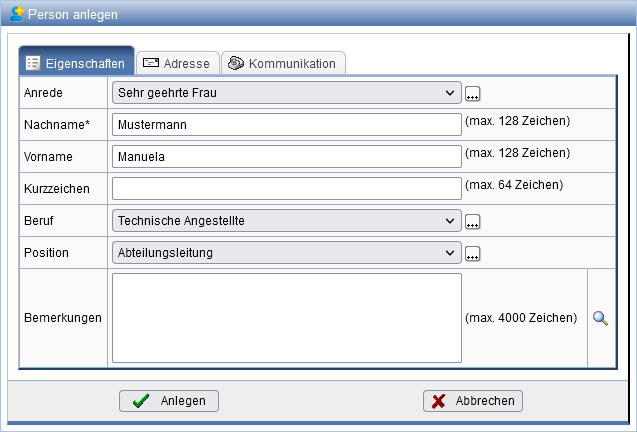
Click on the -symbol in the action bar and enter all relevant person data into the displayed form.
Create Person from Business Card
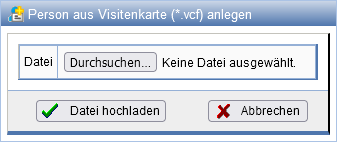
If you have an electronic business card (vcf file) of a person, you can import it and do not need to enter the data manually.
Click on the -symbol in the action bar and
use the button Browse... to locate the electronic business card in the file system.
Create N.N. Person
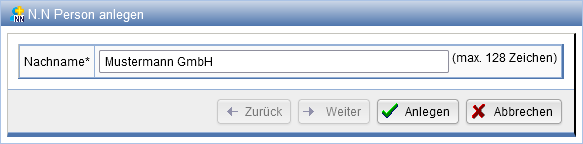
N.N. persons are unnamed persons and represent, for example, the organization or department itself.
On the properties page of the department or organization where you want to create a new N.N. person,
click on the  -symbol in the action bar. Any number of N.N. persons can be created for an organization or
department.
-symbol in the action bar. Any number of N.N. persons can be created for an organization or
department.
The N.N. person receives the name and contact details of the organization or department in which they were created. The name can still be changed.
You can later convert the N.N. person into a normal person.
Change a Person's Properties
By marking in the organization tree or in the result list of a search, you can open the properties page of a person.
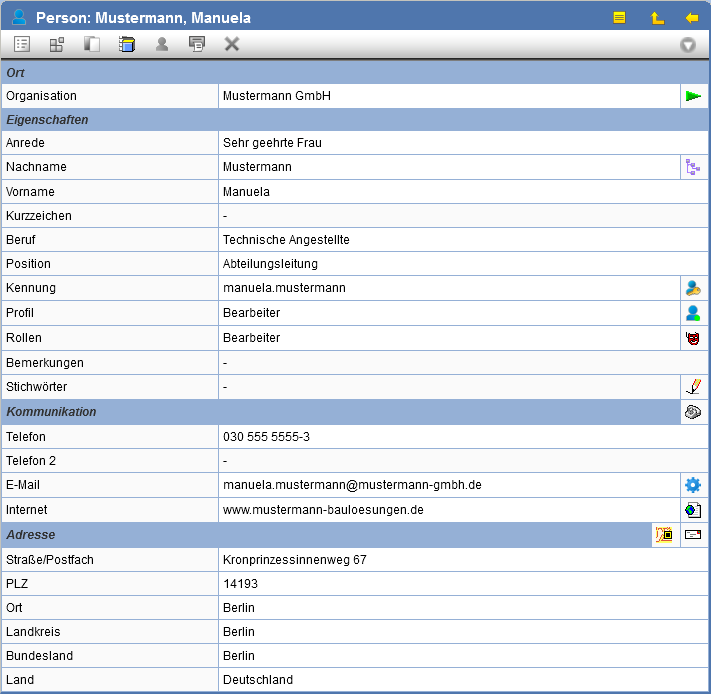
The following actions are possible:
| Changing the master data of the person. | |
Using this button, you can view the registration data of the person. When and by whom was the person registered? When and by whom were the entries last modified?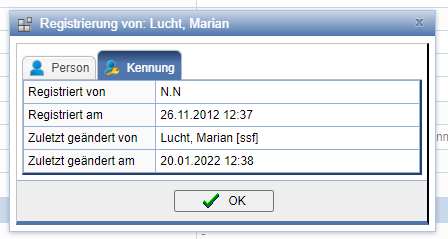 |
|
| Copy the person to the clipboard so that you can paste them into another organization, department, or group. Moving a person to another organization requires that the person is not involved in projects where the user performing the move is not a member. It is also possible to copy multiple persons simultaneously from the results of a search into the Clipboard to insert. | |
| Represents membership in projects, i.e., in which projects the person is a member. | |
| Set the person down former. | |
| Creates a document with the properties of the object to enable printing it subsequently. | |
| The person is deleted. | |
| By clicking this button, you will navigate to the properties page of the parent organization. | |
| By clicking this button, you navigate to the selected person in the organizational structure. | |
| Via this button you can assign an Identification or adjust these accordingly. | |
| Information on the last applied Profile. | |
| Setting the Roles for a person. | |
| By clicking the pen symbol, you enter a text field where you can set keywords. These keywords can be used as search criteria when searching for the person. | |
| By clicking this button, you can change the person's communication data. | |
| Configuring the E-Mail Signature. | |
| Call of the website entered under "Internet". | |
| Call of a map section based on the entered address data. | |
| Using this button, you can change the address data of the person. To quickly adapt address changes for a person, it is possible to inherit the address from organizations and departments to the person. In that case, the form must Address inherit can be selected. |
Change a person's contact details
If you want to change a person's contact details, click on the -Symbol
at the end of the line Communication. In the displayed form, you can change the desired data.
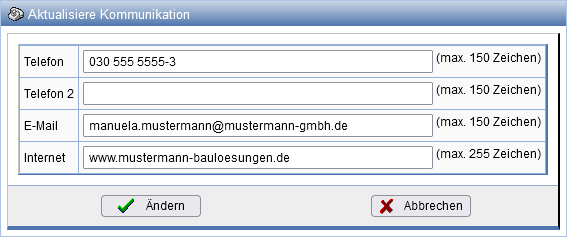
If a subscription existed for the changed email address, you will be prompted to update the subscription with the new email address.
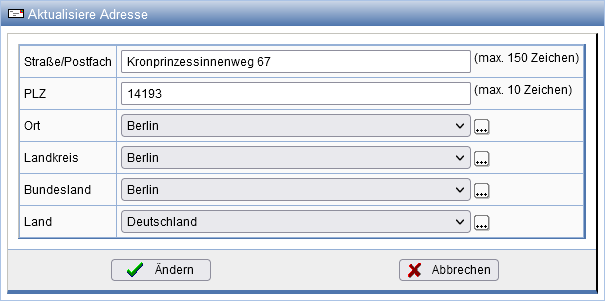
You change the address data via the action at the end of the line Address. Once you enter a postal code, the remaining address information such as Location,
if applicable, District, State andLandautomatically pre-filled.
If the postal code cannot be unambiguously assigned to a location, another dialog opens for manual selection of the location.
All automatically set address information can subsequently be manually adjusted.
Person on former seat
With the action can a person change the status to former.
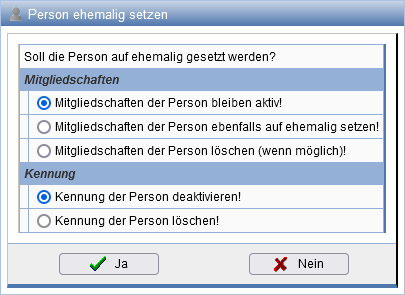
If the option to delete or restore memberships was selected, a dialog will subsequently open with an overview of all memberships for the person and their current status.
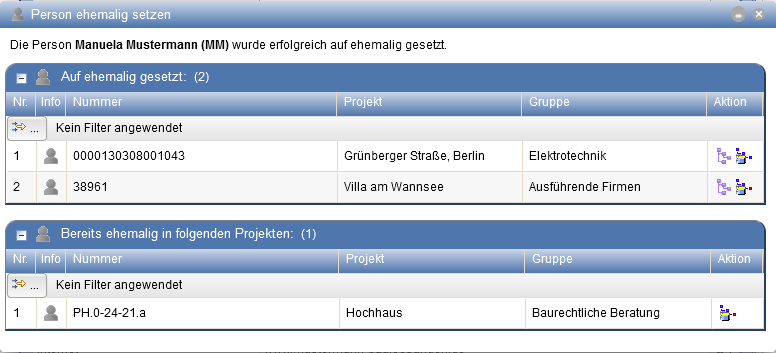
The following actions are available here regarding memberships in projects:
| Using this button, you navigate to the selected membership within the respective project structure. | |
| Using this button, you navigate to the associated project within the project structure. |
Swapping Persons
Persons without identifiers can be swapped. In this case, the organizational affiliation of the affected persons is exchanged.
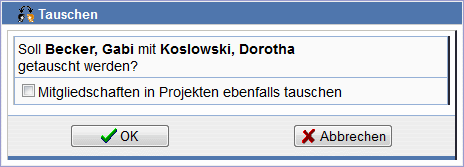
To swap two persons, select the first person in the person tree and press the symbol in the action bar . The person is marked after confirming the swap query.
Now select the second person in the person tree and press the symbol in the action bar . After confirming the query, the persons are swapped. Optionally, you can specify that memberships in projects should also be swapped.