Change Password
The personal properties page is displayed under the personal actions under the symbol  over the menu item User: [Your ID]
called.
over the menu item User: [Your ID]
called.
Via the symbol in the
line ID on this person's properties page, the password can be changed:
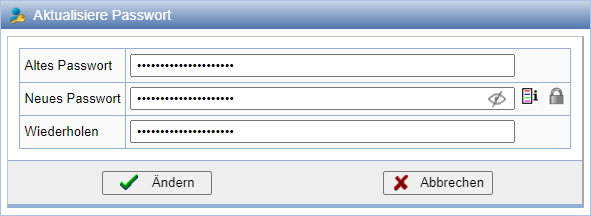
You can display the configured password rules with the action . The action
generates a password that complies with these rules.
Special Case Administrator
If you are logged in as Administrator, the form for changing the password looks slightly different:
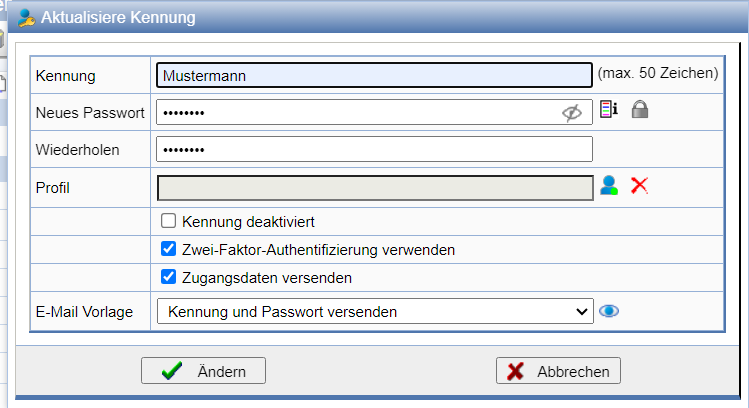
In the field ID, which is pre-filled with the ID of the selected person, you can change the ID for a person. The old ID will then no longer exist. Existing IDs are rejected.
If you only want to change the ID, the fields 'New Password' and 'Repeat' can remain empty - the selected person will then keep the current password. If you also want to change the password, the new password must be entered into these fields.
The line Profile allows setting a profile for the ID or removing the currently set profile. If a profile has been selected, it will be applied by confirming the dialog with Change.
If an identifier is disabled via the option, the identifier remains in place, but it can no longer be used for login.
Further options available here allow you to for the identifier two-factor authentication to make, or to send the access credentials for the identifier, if corresponding templates are stored, to the e-mail address of the concerned person.