Manage Groups
Topics
Groups of a Project
Switch to the Project Structure
by clicking the symbol in the menu bar if you are not already there. Open the project in the tree view. Below the node Groups and Members , all groups belonging to a project are displayed.
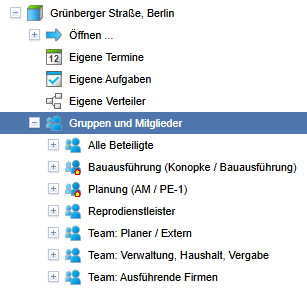
Clicking on a group displays its content on the workspace.
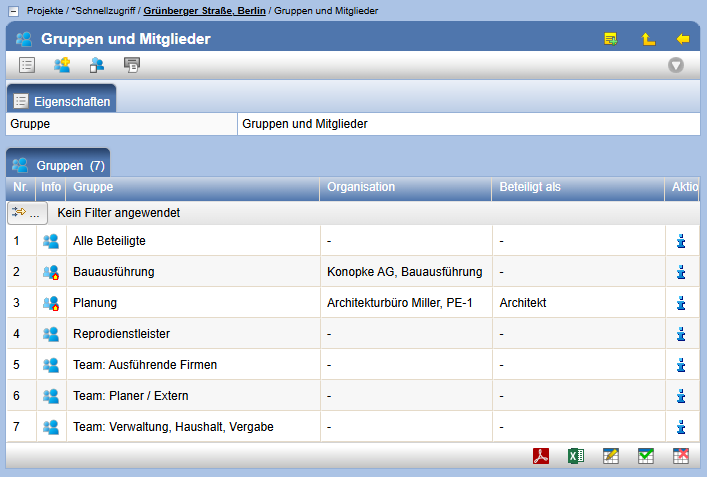
The group All Participants contains all members of the project, regardless of whether they are members of other groups.
In the default configuration, groups that do not contain members are displayed in gray text in the project tree.
Create and Update a Group
To create a new group, use the action  in the Actions toolbar.
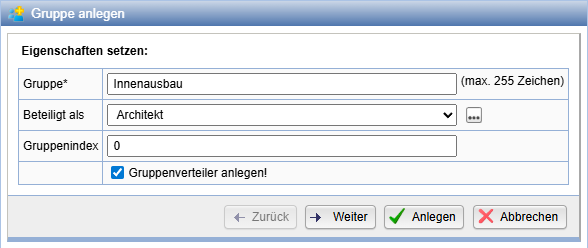
Enter the name of the group to be created and, if necessary, the participation level and the group index. Optionally, you can create a group distribution list for the newly created group. Confirm your entry with Create.
For all groups, except the group All Participants, additional subgroups can be created.
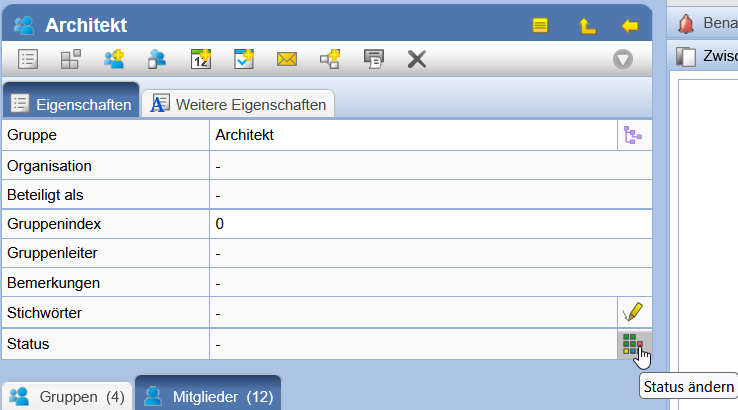
To edit the properties of a group, press the
Action
in the Actions bar of the Properties page.
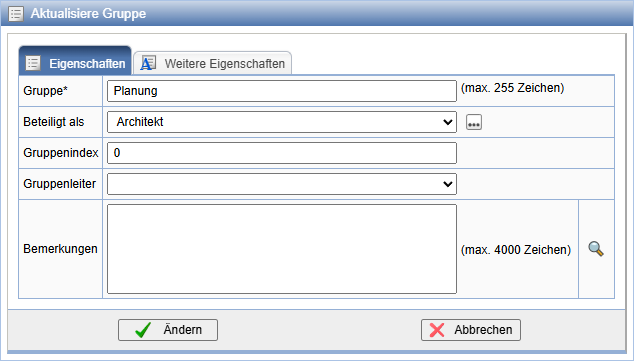
Give the group a name and add the additional properties. The group index is used for individual arrangement, independent of other alphabetical sorting. Groups with a higher index are arranged further down. Within the same group index, groups are sorted alphabetically.
Link Group to an Organization / Department
Groups can be linked to organizations or departments to,
among other things, achieve a unique assignment of members to
them. Groups linked to organizations are marked instead of the normal
group symbol by their own icon
as follows:
.
Groups linked to organizations or departments are created by inserting an organization or department into the group tree of a project. It is also possible to establish the link retrospectively to an existing group. Proceed as follows:
Open via the Action in the menu bar
the organization tree and copy via the action
the organization
or department you wish to link into the clipboard.
Now switch via the Action in the menu bar
to the project structure and select the desired project
in which the group should be created or linked.
To create a new main group, select the node Groups and Members, otherwise the group below which the new group should be created or the group that should be linked to the organization/department. Note that in the group All Involved no subgroups can be created and it cannot be linked to an organization.
Click on the symbol in the
Actions bar.
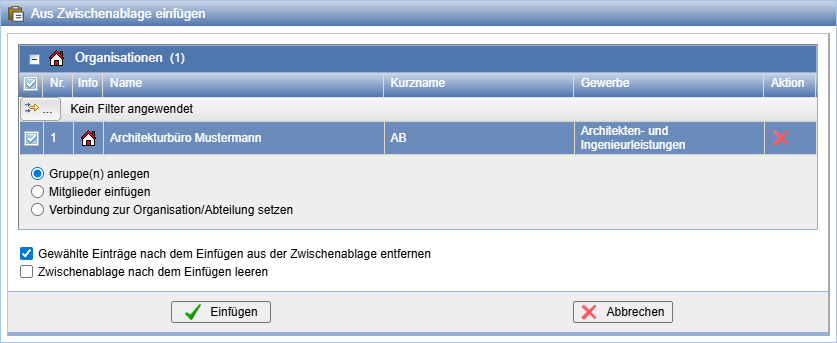
To create a group, select the option Create Group(s). If you only want to insert the persons of the organization as members into the existing group, select the option Insert Members. Establish Link to Organization/Department links the organization (department) with the selected group. Subsequently, only members of this organization (department) can be added to the group. This is only possible if no members of an organization or department exist outside the chosen one.
After executing the action, the persons contained in the organization/department are displayed for selection as group members.
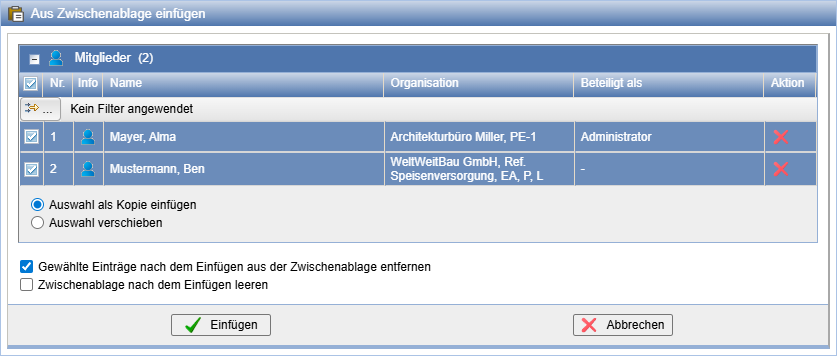
All displayed and marked persons in this list will be created as
group members. To exclude individual persons from being
added, remove the checkmark in the corresponding line,
or remove the person via the action completely from the list.
End the process with Add Members.
Add Members
Proceed analogously to Link Group with an Organization before, but when inserting the organization, select the item Insert Members .
Set Group Leader
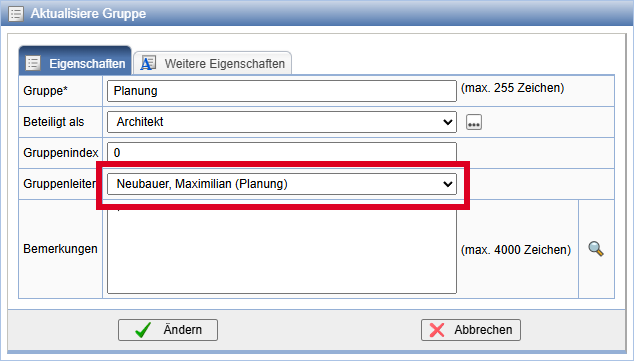
You can set a member as the group leader via the group's properties form.
Arrange Groups
By default, groups are sorted alphabetically in the tree. You have the option to change the order of the groups in the tree arbitrarily. For this purpose, set the attribute Group Index when editing the properties. A higher group index will be sorted further back. Groups with the same group index will continue to be sorted alphabetically.
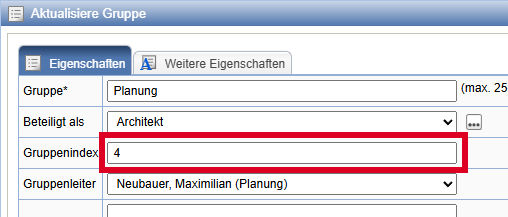
Confirm the change by clicking on Change and then refresh the group tree.
Delete Groups
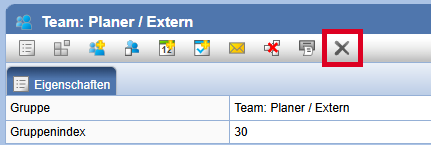
Groups can be deleted, provided they no longer contain any members or subgroups, via the action
delete.
In case a group is no longer needed but cannot be simply deleted due to the links of its members, there is the possibility to hide the group in the group structure by hiding. This is done by adjusting the status of the group.