Log In and Log Out
Log In
To log in to PlanTeam-SPACE, enter your User ID
and your Password. Confirm these entries with Log In.
With the action  , you can
view your password entry.
, you can
view your password entry.
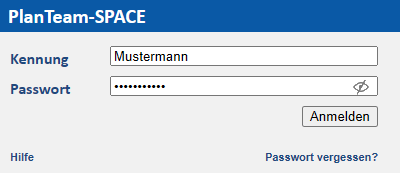
Via the link Forgot Password? you can request a new password.
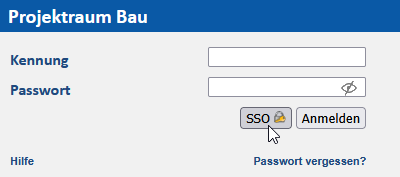
If configured, the login process can also take place via Single-Sign-On (SSO). In this case, you will be logged in directly using your PC user information.
Messages upon Logging In
If you receive a notice about a Workstation Lockout during login, it means that a login with your User ID has occurred but has not yet been completed. If you are sure that only you and no one else is using your User ID, please log out from the system properly to avoid this message. To log in anyway, it is sufficient to enter the password again and complete the login.
If you have been inactive for too long after logging in, i.e., you have not performed any action in PlanTeam-SPACE, the current session will be automatically terminated for security reasons. You will then receive the notice that the session has expired. Simply log in again to continue working.
Notifications upon Logging In
After logging in, you will be redirected to the home page. If you have received new messages, you will be notified in an information window.
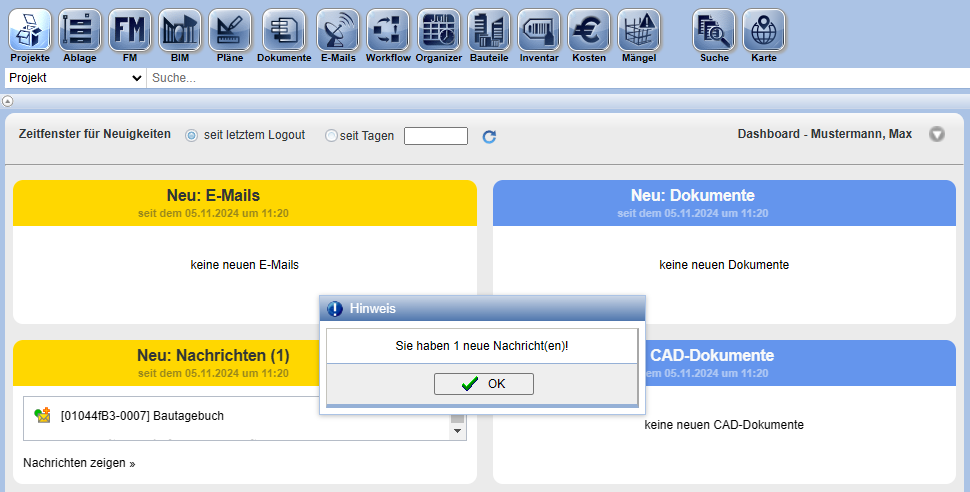
Additionally, you will be notified about new messages, emails, (CAD) documents and defects from all project participants. For more information, please visit the page Dashboard.
Log Out
Via the symbol
in the menu bars, you can log out of PlanTeam-SPACE.
Logging out via this symbol is very important so that the
time of logout is registered on the server. Upon a subsequent
login, the compilation of news will be based on this date.
If you do not log out via the symbol but instead close the
browser or browser window directly, the date may not be
registered on the server. Therefore, upon the next login, the date
of the last logout cannot be correctly specified.
| Important: | Please do not end your work by closing the browser, but always log out of PlanTeam-SPACE! |