Calendar
General
In the calendar, appointments and tasks are displayed clearly in various views, providing you with a quick overview of the chronological arrangement of activities.
The calendar is accessed via the symbol in
the menu bar and opens in its own window.
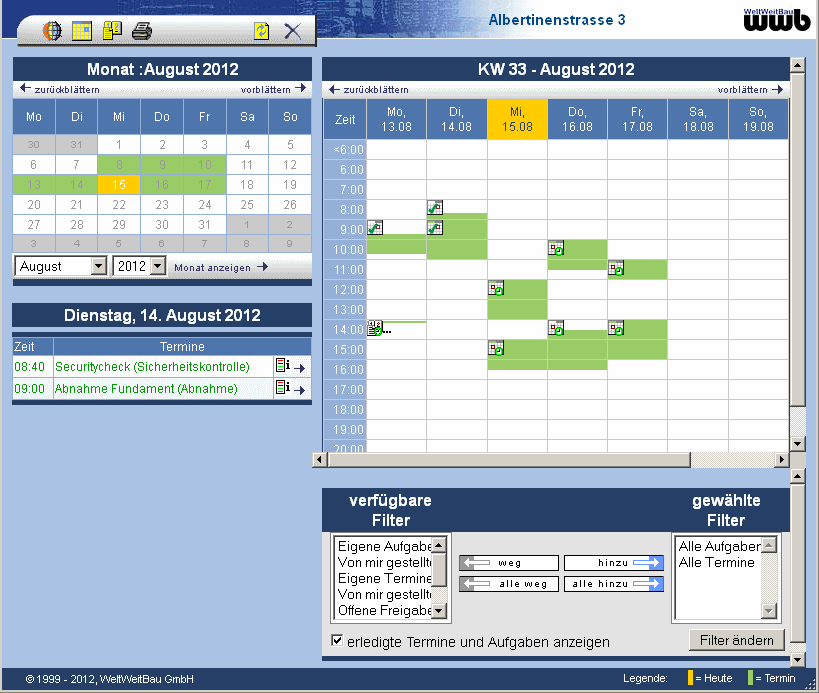
On the left side of the calendar, you will find the menu bar, the monthly overview, and below that, the daily overview. On the right side, you will find the weekly overview and the filter settings, which allow you to show or hide specific elements.
The current day is displayed in both the monthly and weekly views in yellow for existing appointments or tasks. In the weekly view, the corresponding period is colored, and in the monthly view, the relevant day is colored green.green Overdue appointments or tasks are displayed in red text.
| An appointment that has not yet been completed. | |
| A task that has not yet been completed. | |
| A completed task. | |
| A completed appointment. | |
| A task assigned to a group. | |
| A recurring appointment that repeats at specific intervals. | |
| A recurring task that repeats at specific intervals. | |
| A task with the status started. |
Using the Calendar
If you open the calendar from a specific project, only project tasks and appointments are displayed. Additionally, the project title appears in the header. If you open the calendar via the project documentation, you see all appointments and tasks.
Via the buttons scroll backandpre-flipwill switch to the month in the monthly view and to the week in the weekly view.
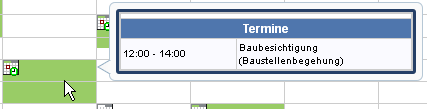
When you move the mouse pointer over an entry in the Week view, information about the corresponding events is displayed, such as the start and end time, the date, or the project (if the calendar was not opened via a project).
Appointments without duration (e.g., from 10:00-10:00) are displayed as a line. If multiple short-term appointments occur consecutively, they are displayed as a single block that begins at the earliest start time and ends at the latest end time.
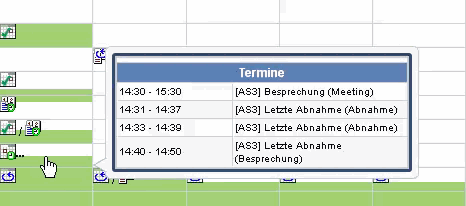
For more detailed information about an event, click on the corresponding row in the day viewpress.
When you click
press, the Properties page of the task or appointment is opened.
Via the buttonin the toolbar
above the monthly view, you can refresh the calendar content and via
the button
close the calendar itself.
By pressingthe main window is brought to the foreground. This action may be disabled due to browser security settings. To use this, it must be enabled in your browser; in Firefox, this can be done viaSettings
> Content > Advanced > Place window in front of or behind other windowsoccur.
Print output
Overa PDF file is generated.
First, select which view should be generated.
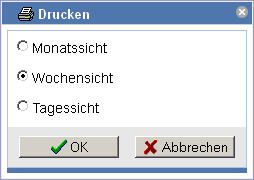
The generated PDF document is displayed and can now be printed using the browser's print function.
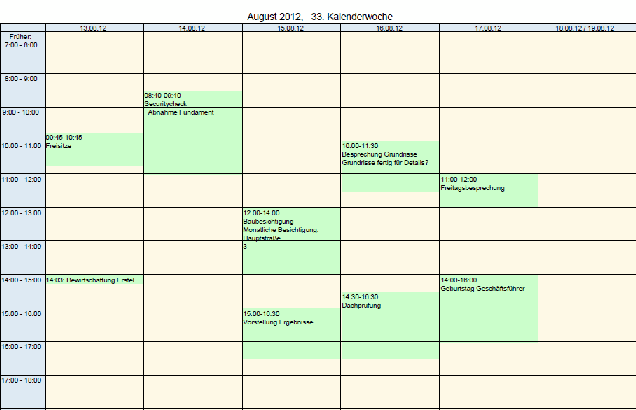
Calendars can be printed within a project and across projects. For calendars within a project, only events belonging to the respective project are displayed.
In the cross-project calendar, all events are displayed depending on the filter settings. For better overview, the short name of the project is shown before each event.
Filter settings
Via the filter settings, you can add or remove the offered filters (buttonsaddedandaway). By selecting filters, the described tasks and appointments are displayed in the calendar.
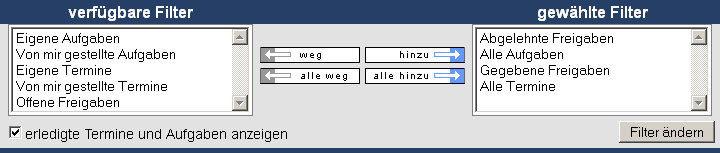
The following filters are available:
| Own Tasks | Toggle tasks assigned to you. |
| Tasks I Created | Toggle tasks created by you. |
| All Tasks | Toggle all tasks created in the project. Tasks of other people will only be displayed if you have rights as a Project Manager or Project Lead, or if read access to tasks for everyone has been configured on the server. |
| My Appointments | Toggle appointments involving you. |
| Appointments I Created | Toggle appointments created by you. |
| All Appointments | Toggle all appointments created in the project. Appointments of other people will only be displayed if you have rights as a Project Manager or Project Lead, or if read access to appointments for everyone has been configured on the server. |
| Open Releases | Toggle all open releases in the project. |
| Given Releases | Toggle all given releases in the project. |
| Rejected Releases | Toggle all rejected releases in the project. |
Via the option show completed appointments and tasks you can display already completed tasks and appointments.
The respective last settings are restored upon the next login.
By pressing the button Change Filter apply the settings to the calendar.