General
Area Management - General
In the FM view, you can manage properties, plots, buildings, building parts, floors, room groups, rooms, and areas along with their associated attributes and documents. Additionally, these area objects can be searched based on specific criteria.
The navigation tree on the left now displays all recorded buildings, rooms, areas, as well as other objects. On the right side, the project's properties page is initially displayed with actions relevant to the FM view.

The actions mean individually:
| Set the settings for the display. | |
| Shows registration information. | |
| Shows area details. | |
| Recalculates areas. | |
| Insert from clipboard. | |
 |
Creates a new property area. |
| Creates a new building. | |
| Creates a new outdoor area. | |
 |
Starts Excel import of rooms. |
| Starts evaluations, e.g., for inventory group persons. | |
| Shows ongoing orders. | |
| Sends a message or an email. | |
| Creates new inventory and links it to the project. (The component InventoryManager must be enabled.) | |
| Creates new software and links it to the project. (The component InventoryManager must be enabled.) | |
| Creates a new inventory group and links it to the project. (The component InventoryManager must be enabled.) | |
 |
Creates a new component. |
 |
Creates a system or a system part. |
| Creates a PDF document with the properties that can subsequently be printed. |
Adjust Display Settings
To adjust the display of the navigation tree in the FM view, press the Action button on the
Properties page of the root node .
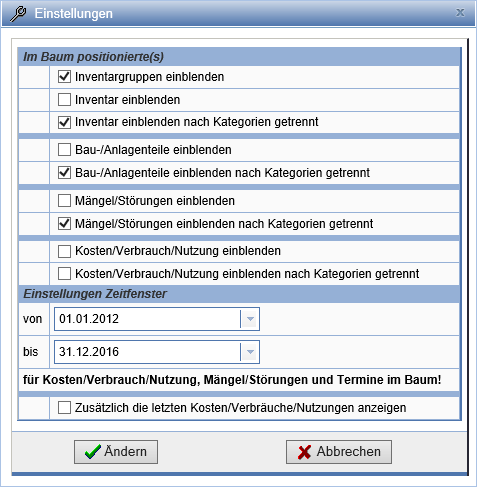
Here you can set display options for linked objects such as inventory, construction and plant parts, costs or defects, and adjust the time window for displaying time-dependent objects (such as costs and consumptions).
If you select the action Print for FM objects, you have the following possibilities depending on the respective object type:
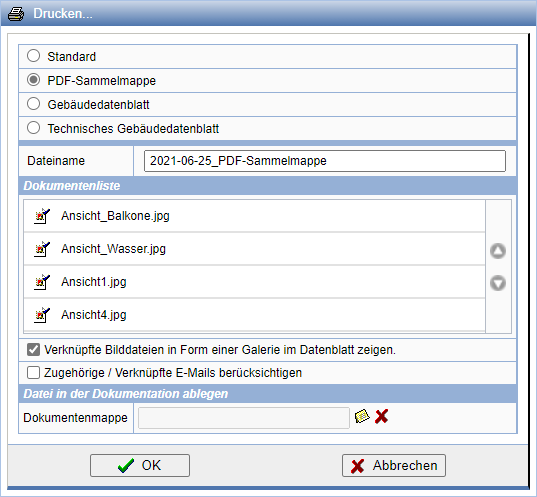
For the PDF folder, the data sheet of the object is combined with the linked documents in a PDF document and optionally stored in the documentation.
Subscriptions
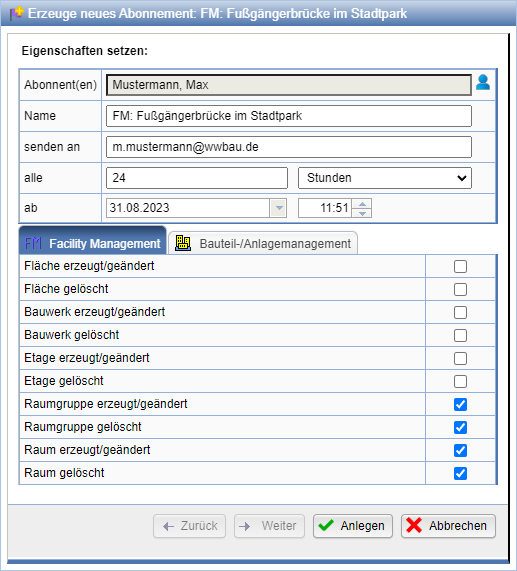
On the Properties page of the main node of the FM component, a new subscription can be created via the action
 .
.
The subscription notifies the user regularly via e-mail about activities within the FM component. The parameters of the subscription (Name, Period, Start time, Objects, etc.) can be freely selected.